PHOTON XENON TACHYON
Before starting a calibration process, you should always validate signal paths and make sure the various video displays (monitors, projectors, etc.) are correctly identified. Beyond the obvious problems caused by broken signal paths, incorrect video output identification might lead to confusion during the calibration process.
Before activating Display Identification, make sure all of your Displays are powered and properly connected to the Video Output Ports on all servers. Also make sure you have declared all of your Virtual Video Outputs in the Settings module (see Virtual Video Outputs Creation). Otherwise, TACHYON or PHOTON will not output video content.
Signal Routing
In order to send video content to a display, the following path must be followed:
- Media > Screens > Virtual Display > Virtual Output > Graphic Card Physical Output > Signal Transmission > Display
Warning:If the signal does not reach the Display, you should test the signal path in the order described above.
Display Identification
TACHYON or PHOTON features an identification card system designed to simplify troubleshooting operations related to display identification and signal path continuity.
TACHYON or PHOTON can simultaneously generate random-colored identification cards featuring output names and corresponding display names for each declared Virtual Video Output.
Note that animated VYV logos and an output name are integrated in each identification card.
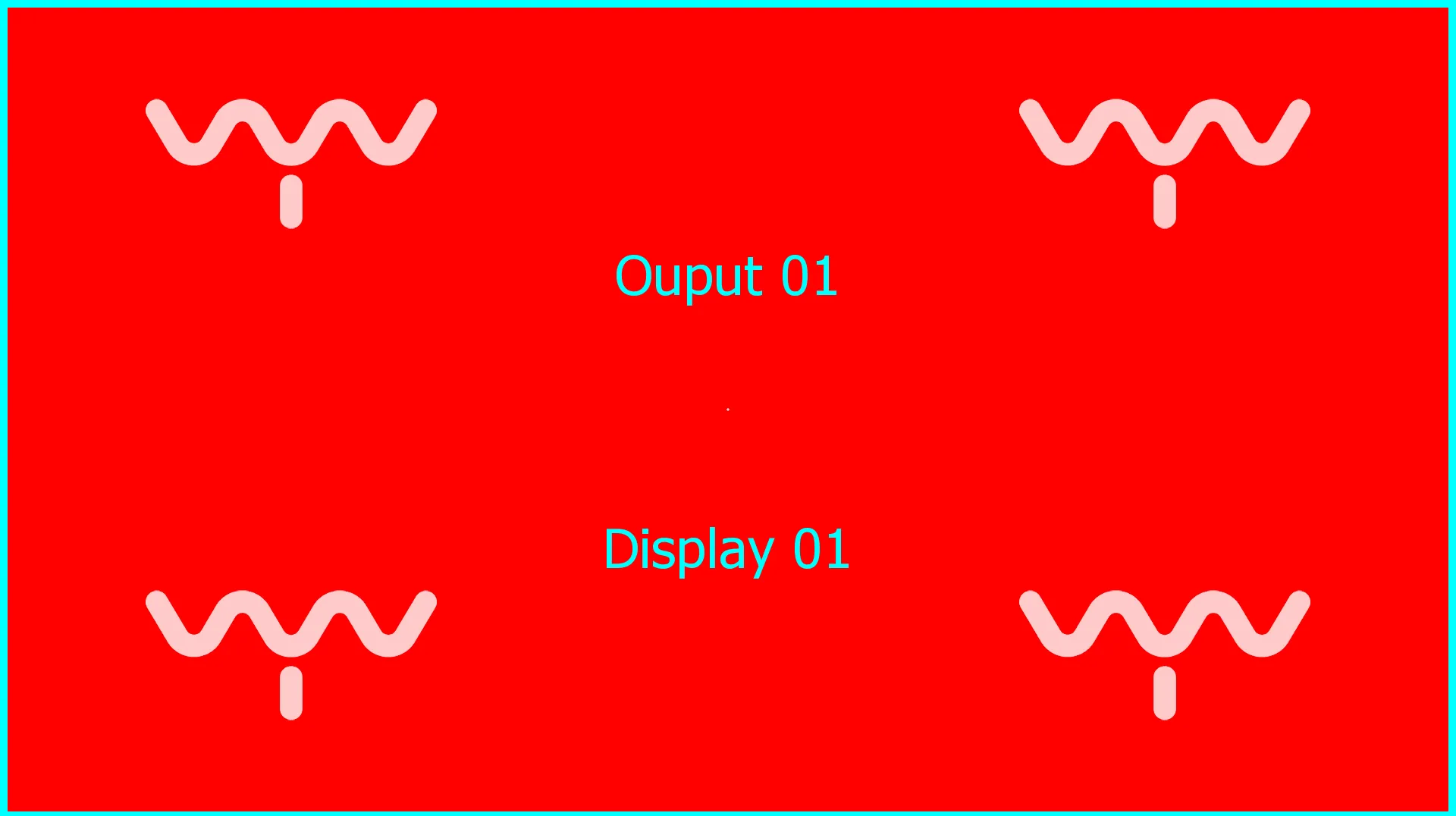
Sending identification cards simultaneously through every output will allow you to visually validate the signal path and the output configuration (and naming).
Enable Display Ident
Before enabling Display Ident you should have:
- integrated your Display Servers and Display Master Servers into your Server Group, and
- declared all of their Outputs in the Settings module. Doing so will allow you to see the identification cards in your Displays. (see Server Group Creation and Virtual Video Outputs Creation in Setting Up a Show).
To Enable Display Ident:
- Open the 3D Scene module by pressing Alt + C OR by selecting .
- Enable the Calibration mode by pressing 2 (TACHYON) or 4 (PHOTON) OR by clicking on the
Calibration toggle.
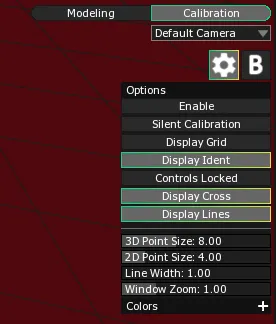
- Open the Settings Panel by clicking on the gear icon button.
- Click on the
Display Ident toggle to activate Display Ident.
OR
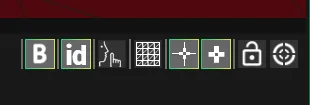
- Enable the ID toggle in the quick options bar of the Calibration Tools Panel
OR
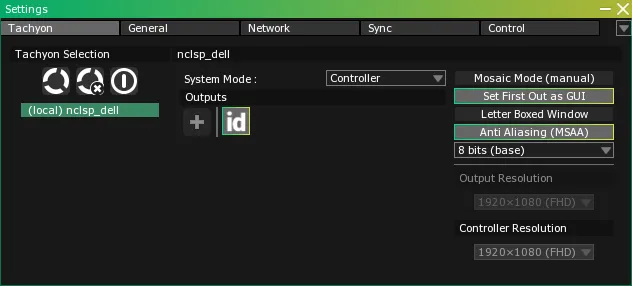
- Open the Settings module by pressing Alt + S OR by selecting .
- Click on the ID toggle to activate Display Ident.
Identification cards will be rendered on top of everything, and will therefore hide calibration and display rendering. Make sure Display Ident is off when you are done with it.