PHOTON XENON TACHYON
TACHYON or PHOTON will automatically draw windows across connected devices such as projectors and screens to display the User Interface (UI) and output video. This default configuration allows users to operate the software without a Mosaic configuration.
Warning:It is highly preferable to run TACHYON or PHOTON on a server where a Mosaic configuration has been enabled. A Mosaic will create a single large openGL context containing all of the video outputs and the UI. Such a configuration offers better performance and flexibility than the default auto window creation behavior.
Many different options can be activated in order to modify how TACHYON or PHOTON handles windowing. Do the following in order to access those:
- Select OR press Alt + S
- Click on the TACHYON or PHOTON tab to access windowing and display options, represented by toggles on the right side of the window.
Mosaic Mode (manual)
If you previously created a Mosaic display group using the NVIDIA driver (which is recommended by VYV for better performance), you have to enable this option to profit from the advantages provided by the Mosaic configuration.
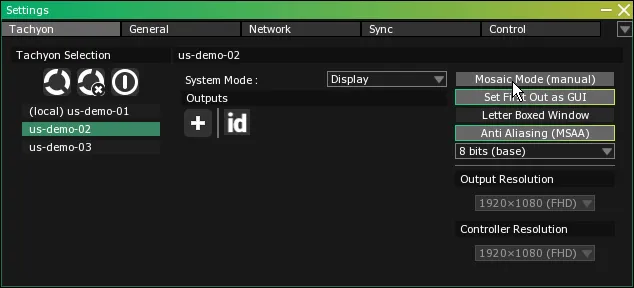
- Select the first server that features a Mosaic display group by clicking on its name in the TACHYON or PHOTON Selection servers list.
- Activate the
Mosaic Mode (manual) toggle to enable the option.
- Repeat this operation with all servers in the Server Group that feature a Mosaic display group.
Set First Out as GUI
By default, TACHYON or PHOTON Servers always use the first video output on their graphics card to display their UI. The server’s System Mode has no effect on this.
A Display Server or a Display Master Server will feature the same behavior.
If you wish to dedicate the first output to the UI and avoid displaying any other video content, you have to keep this option enabled.
If you wish to use the first output to display video content as well as the UI (which could turn a Display Server from a 3 or 7 video output device to a 4 or 8 video output device), you will have to deactivate this option on all of the targeted servers.
- Select the first server for which you want to change the option by clicking on its name in the TACHYON or PHOTON Selection servers list.
- Click on the
Set First Out as GUI toggle to deactivate the option.
- Repeat for the previous steps to change the options on any other servers.
Letter Boxed Window
This option is meant to compensate for a behavior found in some video projectors that crop a portion of the image content on the vertical axis. It should only be enabled if the projectors connected to the servers display this type of behavior.
- Select the first server for which you want to change the option by clicking on its name in the TACHYON or PHOTON Selection servers list.
- Activate the
Letter Boxed Window toggle to enable the option.
- Repeat for the previous steps to change the options on any other servers.
Anti-Aliasing (MSAA)
Multiple Sample anti-aliasing (MSAA) can be enabled to remove visual artefacts such as jagged lines and ensure a smooth appearance of the vectorial visual components displayed by TACHYON or PHOTON.
- Select the first server for which you want to change the option by clicking on its name in the TACHYON or PHOTON Selection servers list.
- Activate the
Anti Aliasing (MSAA) toggle to enable the option.
- Repeat for the previous steps to change the options on any other servers.
Bit Depth Mode
In PHOTON, a dropdown menu located in the PHOTON tab of the Settings module allows users to specify PHOTON’s framebuffer bit depth. Media produced in a 10-bit or 10-bit HDR format can be handled properly by the software if the corresponding bit depth mode has been selected.
- Select the first server for which you want to change the option by clicking on its name in the PHOTON Selection servers list.
- Select ****any option from the Bit Depth Mode dropdown menu to enable the option.
- Repeat for the previous steps to change the options on any other servers.
Modify Resolution for Outputs and the UI
If the Mosaic Mode is enabled, it is possible to modify the resolution of the outputs and the User Interface (UI). The content will be displayed in windows redrawn according to the selection made with dropdown menus.
The Mosaic will still be maintained and cover the full dimensions specified for each output.
Output Resolution
- Select the first server for which you want to change the Output Resolution by clicking on its name in the TACHYON or PHOTON Selection servers list.
- Select the desired resolution from the Output Resolution dropdown menu.
- Repeat for the previous steps to change the Output Resolutions on any other servers.
Controller Resolution
- Select the first server for which you want to change the Controller Resolution by clicking on its name in the TACHYON or PHOTON Selection servers list.
- Select the desired resolution from the Controller Resolution dropdown menu.
- Repeat for the previous steps to change the Controller Resolutions on any other servers.
Hide/Show the UI Locally
- Press the Tab key to turn the User Interface (UI) on or off, using the server that has keyboard control.
Hide/Show the User Interface Remotely
- Select OR press Alt + S and click on the General tab, under UI Options.
Hide/Show Network UI buttons will hide/show the interface remotely on all Display Servers and Display Master Servers.
A server set in Controller mode will ignore this command.
Auto Window Creation PHOTON
This option (activated by default) forces PHOTON to automatically create video output windows through its graphic output cards. If you previously created a Mosaic display group using the NVIDIA driver (which is recommended by VYV for better performance), you have to disable this option.
- Select the first server that features a Mosaic display group by clicking on its name in the PHOTON Selection servers list.
- Click on the
Auto Window Creation toggle to deactivate the option (the toggle will fade).
- Repeat this operation with all devices in the Server Group that feature a Mosaic display group.
Draw Canvas View PHOTON
By default, PHOTON Servers always use the first video output on their graphics card to display their UI. The server’s Operation Mode has no effect on this. (A Display Server or a Display Master Server will feature the same behavior.) If you wish to use this first output to display video content (which could turn a Display Server from a 3 or 7 video output device to a 4 or 8 video output device), you will have to deactivate Draw Canvas View on all of the targeted servers.
- Select the first server that you want to strip of its UI by clicking on its name in the PHOTON Selection servers list.
- Click on the Draw Canvas View toggle to deactivate the option (the toggle will fade).
Keep in mind that even if you added a video output, the UI will still be accessible and will overlay the first output.
Hide/Show the User Interface Locally PHOTON
- Press the Tab key to turn the UI on or off, using the server that has keyboard control.