PHOTON XENON TACHYON
Saving in TACHYON or PHOTON may differ in some ways from what you might be accustomed to in other software. TACHYON or PHOTON’s Default Save writes in the main memory slot used for backing up a TACHYON or PHOTON Project’s files (using the .phd file extension).
- The Default Save is automatically loaded when TACHYON or PHOTON starts.
- The Default Save is automatically overwritten when TACHYON or PHOTON quits. A new save is created in the same memory slot, with the project’s current data.
All types of Saves strictly include TACHYON or PHOTON’s data. None of the media files or 3D objects will be backed up through any of the saving methods.
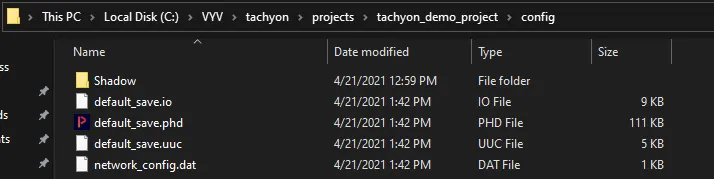
- All saves will be located in …VYV\tachyon\projects\current_project_name\config\\…
- A TACHYON or PHOTON Save is divided into 3 files:
- a .phd file (TACHYON or PHOTON Data)
- a .io file (all the configurations of your input and output devices)
- a .uuc file (UI configurations; your current Workspace)
- There are 3 ways to save your TACHYON or PHOTON Project.
- Save Default Ctrl + S
- Save Incremental Ctrl + Alt + S
- Save Project… Ctrl + Shift + S
We recommend you to save regularly using both the Save Default method and either the Save Incremental or the Save Project method to create timestamped snapshots of your project.
Save Default
TACHYON or PHOTON uses the Default Saves as its standard way of backing up your progress while working on a project.
- If you select OR press Ctrl + S the current state of your project will overwrite the file that was previously saved as the Default Save. Therefore, Default Saves are destructive.
- By selecting OR by pressing Ctrl + L you will revert your project to the previous state that was saved in the Default Save.
Furthermore, if you let TACHYON or PHOTON quit properly, by letting the Windows console finish its process, your project will automatically be saved as a Default Save.
Default Save is the save that will be loaded when TACHYON or PHOTON starts.
Load Default
- Select OR press Ctrl + L to load the version of the project currently saved in the Default Save memory slot. A Confirm Load Project dialog box will open and ask “Are you sure you want to reload the last default save?”
- Click on the
Yes button to reload the last default save. Click on the No button if you decide to keep on working with your project in its current state.
Save Incremental
Save Incremental is the fastest way to save. It incrementally creates new save files.
- By selecting OR by pressing Ctrl + Alt + S you will automatically create a saved project file without prompting a Windows file dialog.
The save will be named as follows: Currentprojectname_yyyymmdd_hhmmss
Example: Myproject_20260305_185423
The date and time are determined by the local server’s operating system.
Save Project…
The Save Project command lets you save specially named versions of your project when it reaches a state that you want to keep as a backup. Save Project is an inalterable step, a backup of your TACHYON or PHOTON Project’s data at a specific point, except if you manually delete it or choose to replace it.
- Select OR press Ctrl + Shift + S to prompt a Windows dialog that lets you name the project save.
Load Project
- Select OR press Ctrl + Shift + L to open a Windows file explorer that lets you access previous versions of your project created through any of the save methods.
- To load a previous version of your project, select the desired project file from the Windows file explorer and click on the
Open button.
Auto-save
Select and enable the Auto-Save Toggle, Select the Frequency in minutes with the slider.
TACHYON or PHOTON will automatically do a Save incremental every n Minutes set in the slider.