PHOTON XENON TACHYON
Description
A file versioning system allows PHOTON users to automatically specify which version of a file will be linked to a Timeline’s Media Clip.
Requirement
File versions have to respect the following naming convention:
anyfilename _V###
For example, multiple versions of a media named nightsky would be named : nightsky_V001, nightsky_V002, Nightsky_V003, etc.
Settings
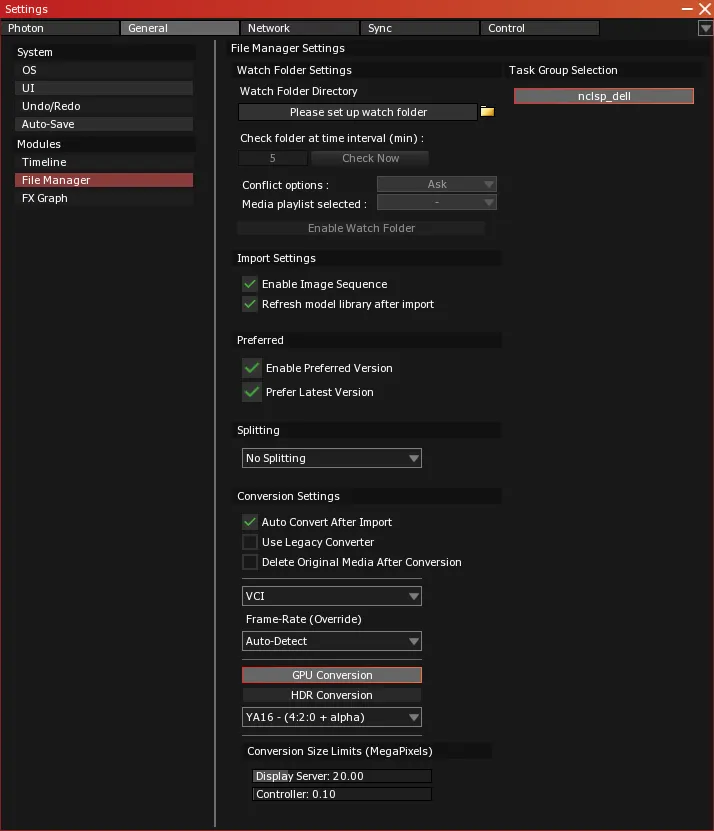
- Select OR press Alt + S to open the Settings module.
- Select the General tab of the Settings module.
- Select File Manager Settings panel from the list.
- Locate the Preferred section.
- Activate the
Enable Preferred Version toggle.
- Activate the
Preferred Latest Version toggle.
File Manager
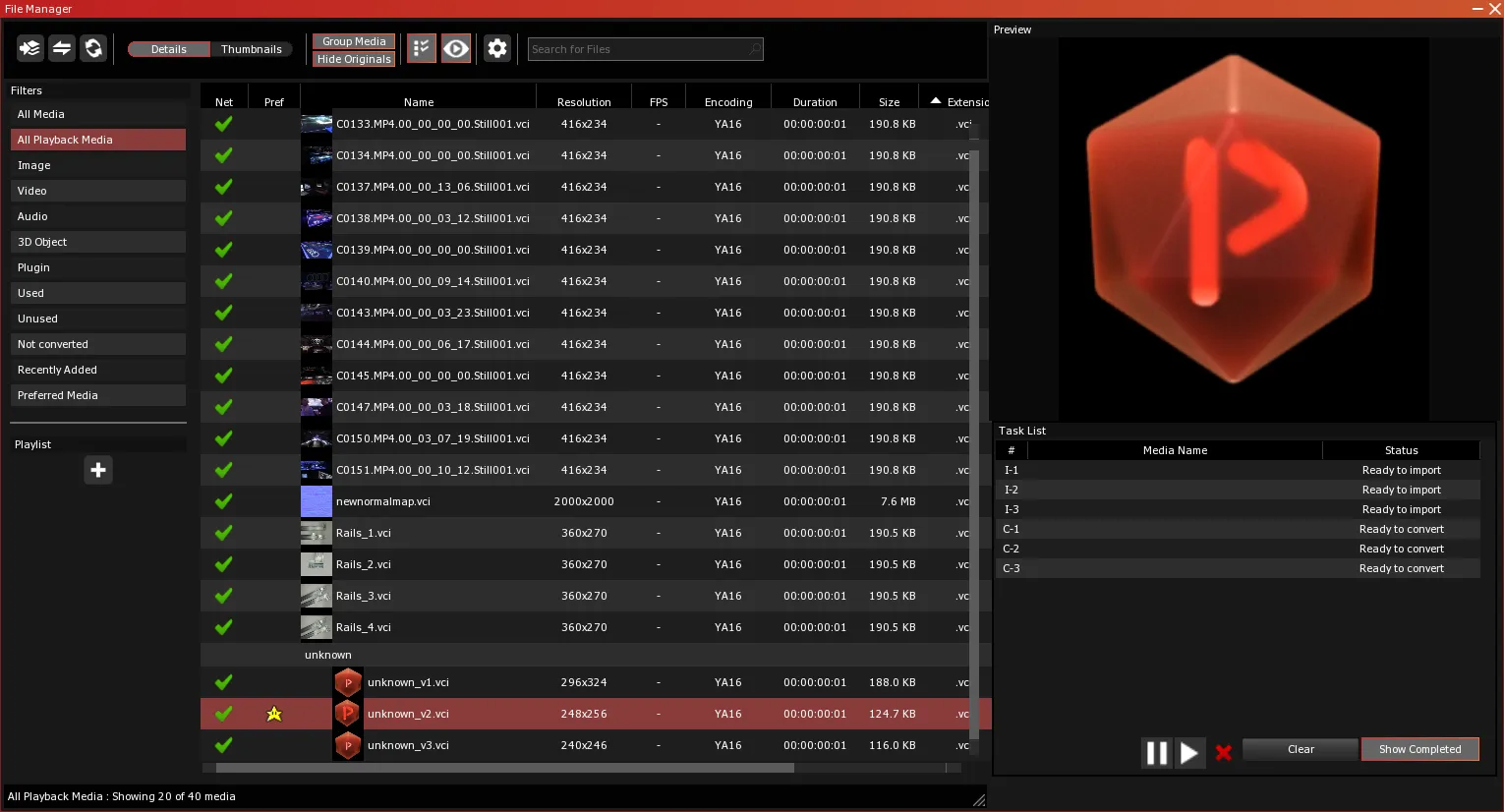
- Select OR press Alt + F to open the File Manager module.
- Click on the Import New Media button to open the “Import file(s)” window
- Perform a group selection of the multiple versions of the media file. (Naming convention: anyfilename _V###).
Timeline
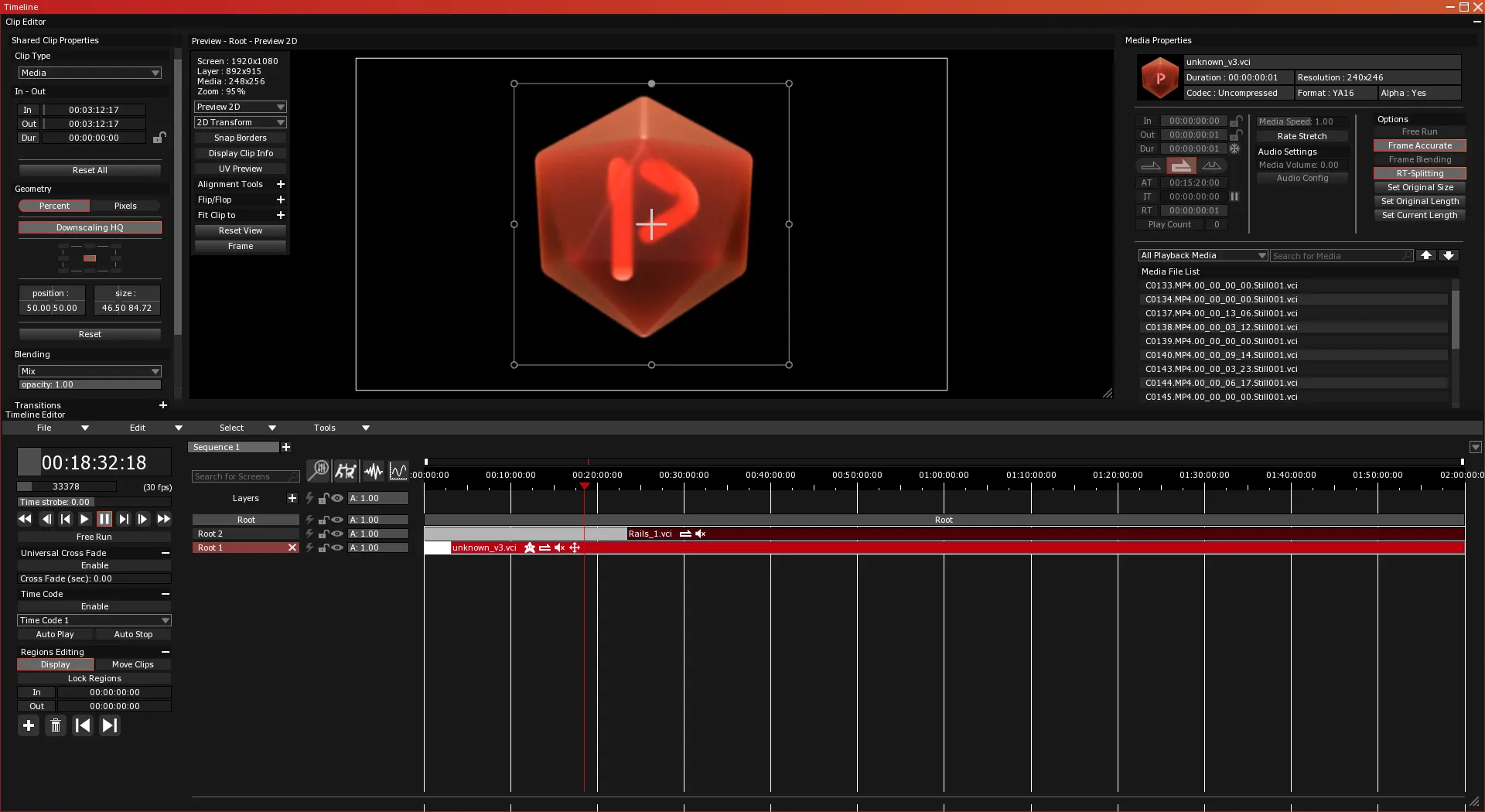
- Select OR press Alt + T to open the Timeline module.
- Make sure the File Manager module is still open.
Click-drag a media file included in the version collection from the File Manager list onto the Timeline.- If the
Preferred Latest Version toggle is activated, the latest imported version will be displayed. A star will be displayed in the clip icons indicating a newer or preferred version is in use.
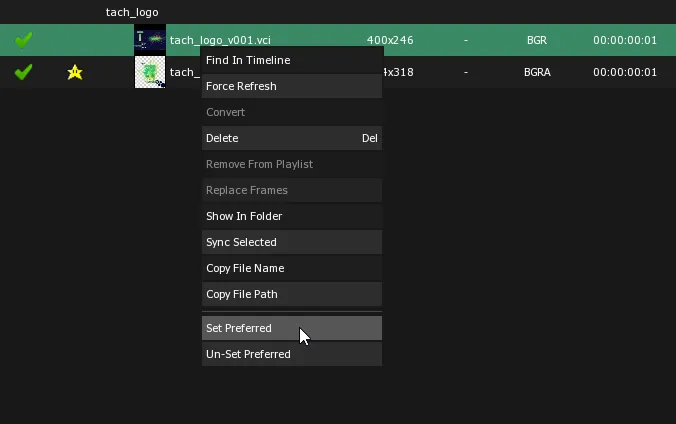
Select/Unset Preferred Version in the File Manager
- Navigate back to the File Manager.
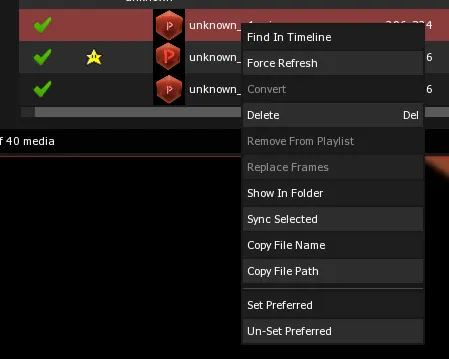
- Right-click on the version you want to use.
- Select
set preferred from the contextual menu. A Mario star will now indicate it is the preferred version.
OR
- Select
Unset Prefered from the contextual menu. The selection will default back to the latest version if the Preferred Latest Version toggle is activated or the version currently set in the clip if the Preferred Latest Version toggle is deactivated.
Warning: This will be applied to ALL clips using one of the media in that collection.
Requirement
File versions have to respect the following naming convention:
anyfilename _V###
Example: Multiple versions of a media named nightsky would be named : nightsky_V001, nightsky_V002, Nightsky_V003, etc.
Settings
- Select OR press Alt + S to open the Settings module.
- Select the General tab of the Settings module.
- Select
File Manager Settings panel from the list.
- Locate the
Media Versoning section.
- Activate the
Enable Versionning toggle.
- Activate the
Prefer Latest Version toggle.
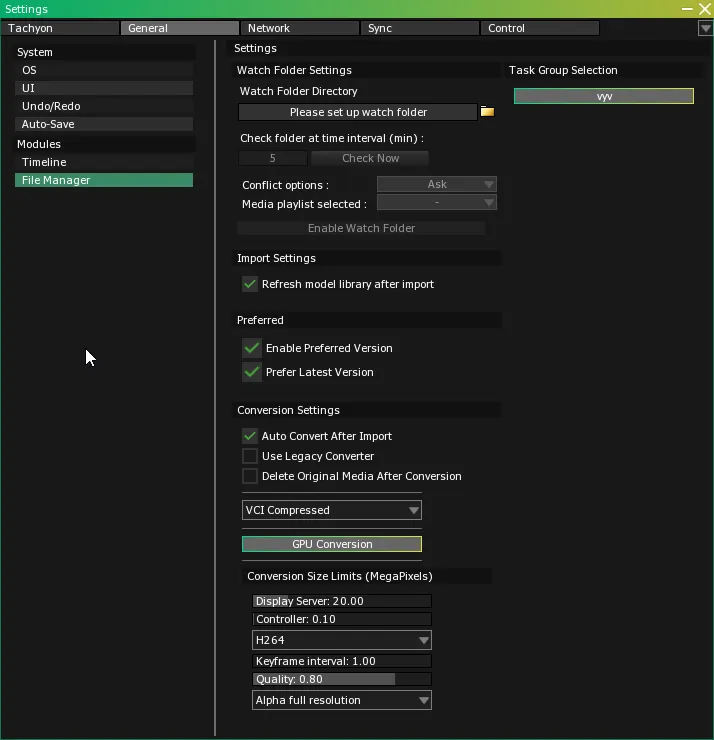
File Manager
- Select OR press Alt + F to open the File Manager module.
- Click on the Import New Media button to open the “Import file(s)” window
- Perform a group selection of the multiple versions of the media file. (Naming convention: anyfilename _V###).
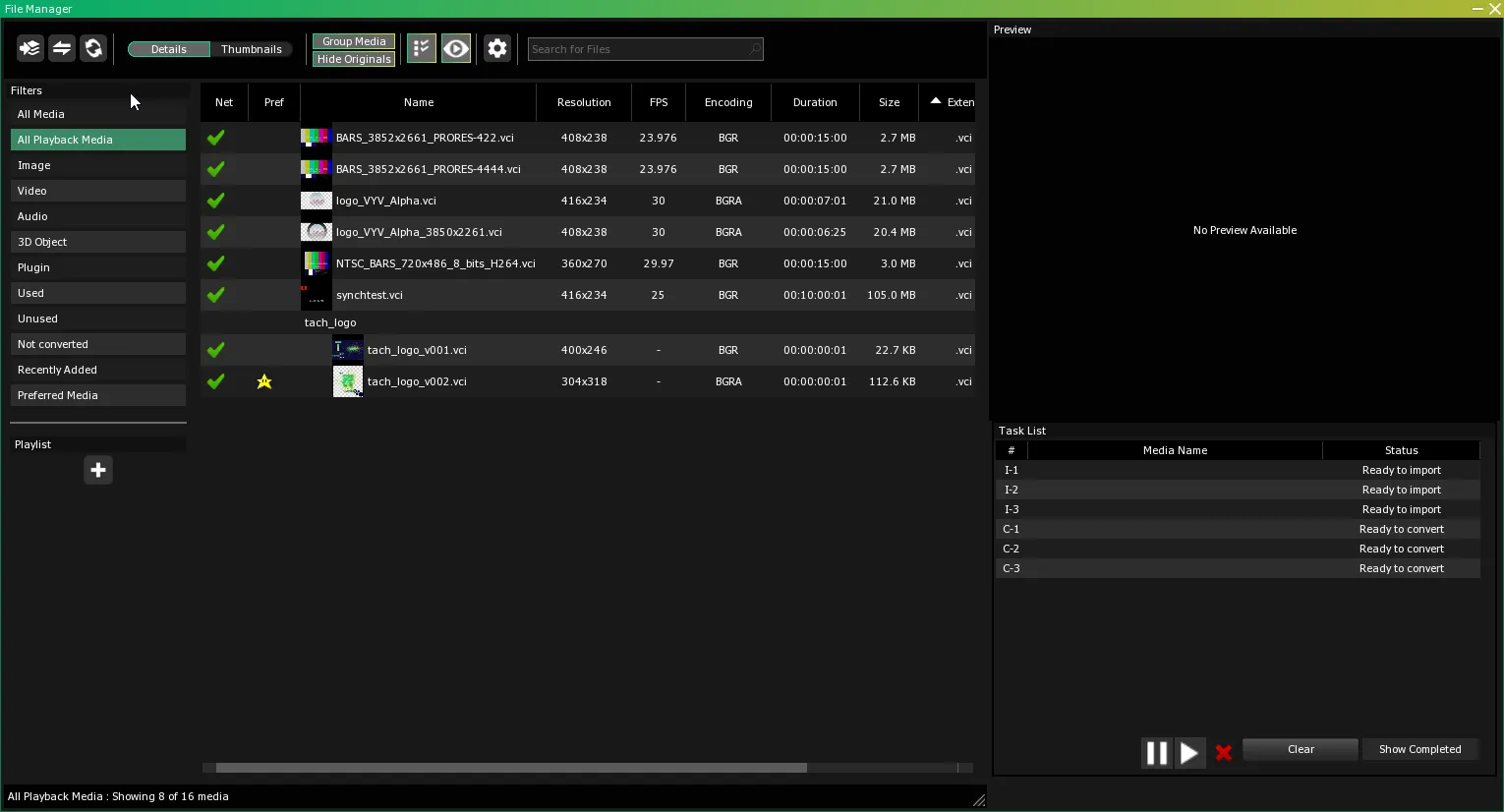
Timeline
- Select OR press Alt + T to open the Timeline module.
- Make sure the File Manager module is still open.
Click-drag a media file included in the version collection from the File Manager list onto the Timeline.- If the
Preferred Latest Version toggle is activated, the latest imported version will be displayed. A star will be displayed in the clip icons indicating a newer or preferred version is in use.
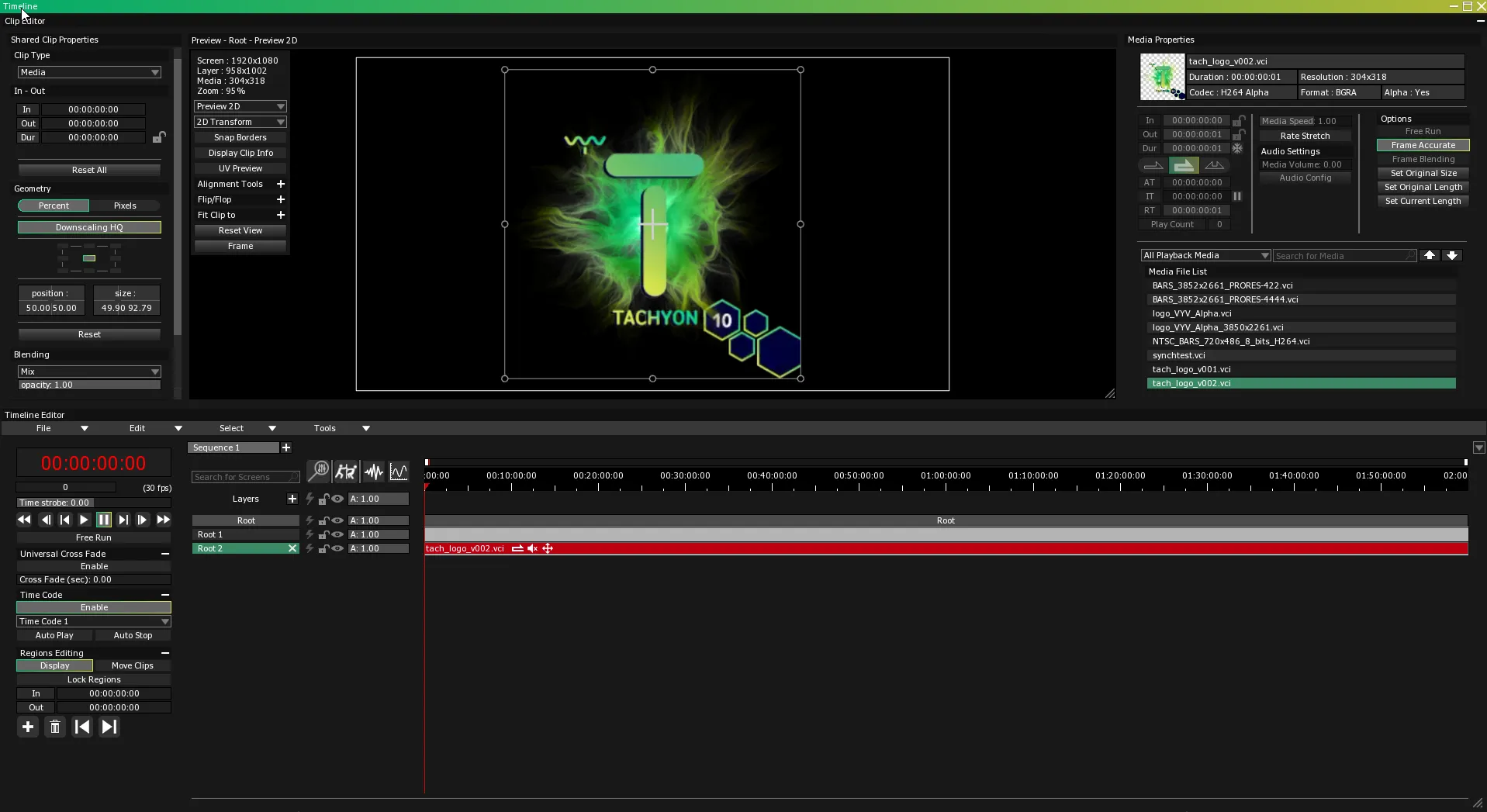
Select/Unset Preferred Version in the File Manager
- Navigate back to the File Manager.
Right-click on the version you want to use.- Select
Set preferred from the contextual menu. A Mario star will now indicate it is the preferred version.
OR
- Select
Unset Prefered from the contextual menu.
- The selection will default back to the latest version IF the
Preferred Latest Version toggle is activated
- the version currently set in the clip IF the
Preferred Latest Version toggle is deactivated.
Danger:This will be applied to ALL clips using one of the media in that collection.