PHOTON XENON TACHYON
The Synchronize command is used to push the current Project’s programming from the local server to the others that are included in the same Server Group. Here follows a few examples where the Synchronize command can prove useful:
Example: A server acting as a Controller (or Display Master) could push a completely programmed show to the networked Display servers. This feature is very useful in cases where blank new servers are added to an on-going Project.
Warning:In such cases, keep in mind you will have to import again all of the media onto the new servers.
Example: It is frequent to edit shows offline on a remote Controller. When time comes to do the update, just load the Project file onto the connected Controller or Display master and then use the Synchronize command. Updates will be applied on all servers included in the Server Group.
Warning:If you encounter problematic situations where the current state of a project was not correctly distributed over servers, use the Synchronize command to manually push it over the network.
Synchronize a Server Group
- Select from the Main Menu OR press Alt + S to open the Settings module.
- Make sure the
TACHYON or PHOTON tab is selected.
- Make sure a Server Group has been created previously.
Warning:The Server Group must include all of the servers you want to synchronize.
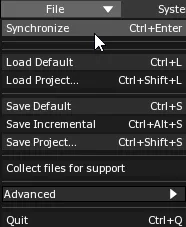
- Select from the Main Menu OR press Ctrl + Enter.
Danger:Be careful, if the Reset command was used on the Controller or the Display Master before applying the Synchronize command, a blank empty Project will be pushed across the Server Group.
Inverted Synchronization
An inverted synchronization consists in pulling a Project’s data from a remote server and applying it to the local server. This might be useful in a situation where a new Controller server is added to a Server Group and you need to transfer the show data locally.
- Select from the Main Menu OR press Alt + S to open the Settings module.
- Make sure the
TACHYON or PHOTON tab is selected.
- Make sure a Server Group has been created previously.
Warning:The Server Group must include all of the servers you want to synchronize.
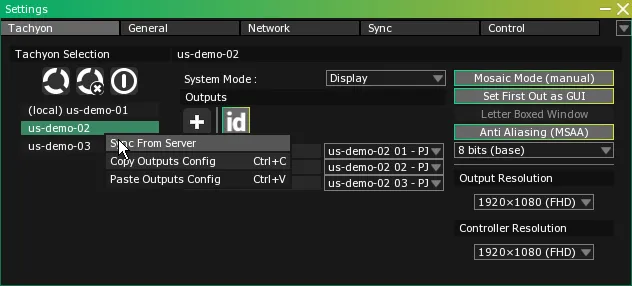
Right-click on the server from which you want to pull the Project’s data in the TACHYON or PHOTON Selection list to open a contextual menu.- Select
Sync From Server from the contextual menu to perform the inverted synchronization.