PHOTON XENON
Create a virtual projection on 25 screens at once
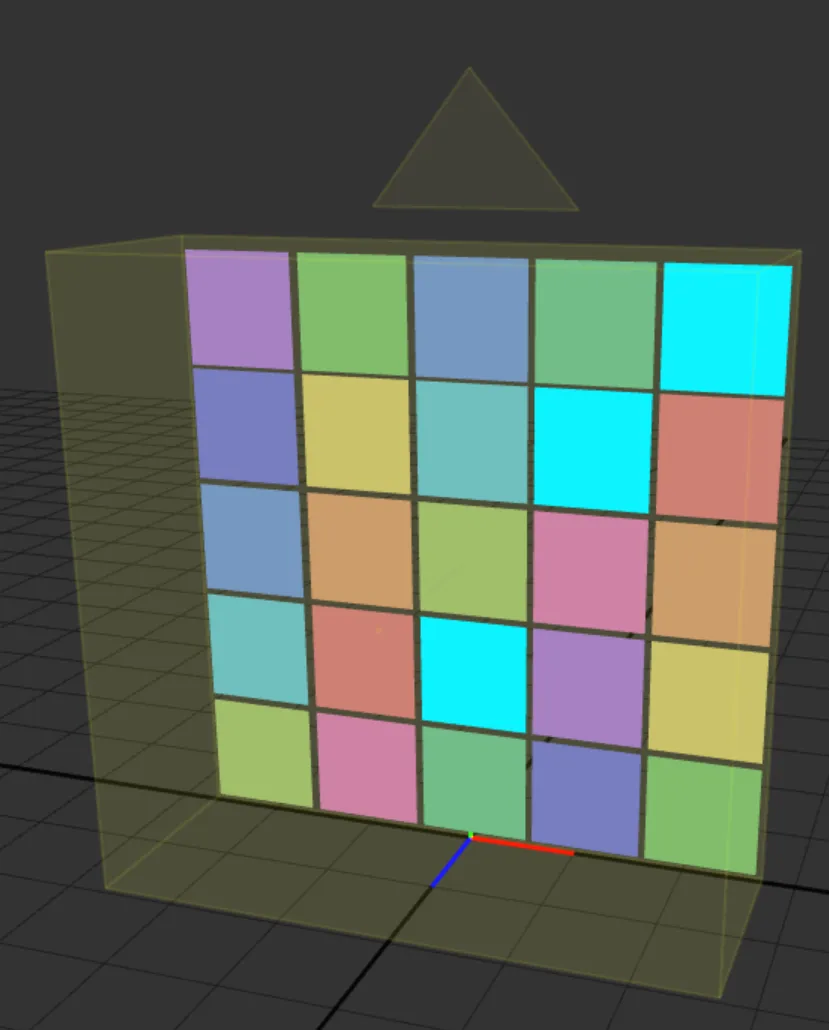
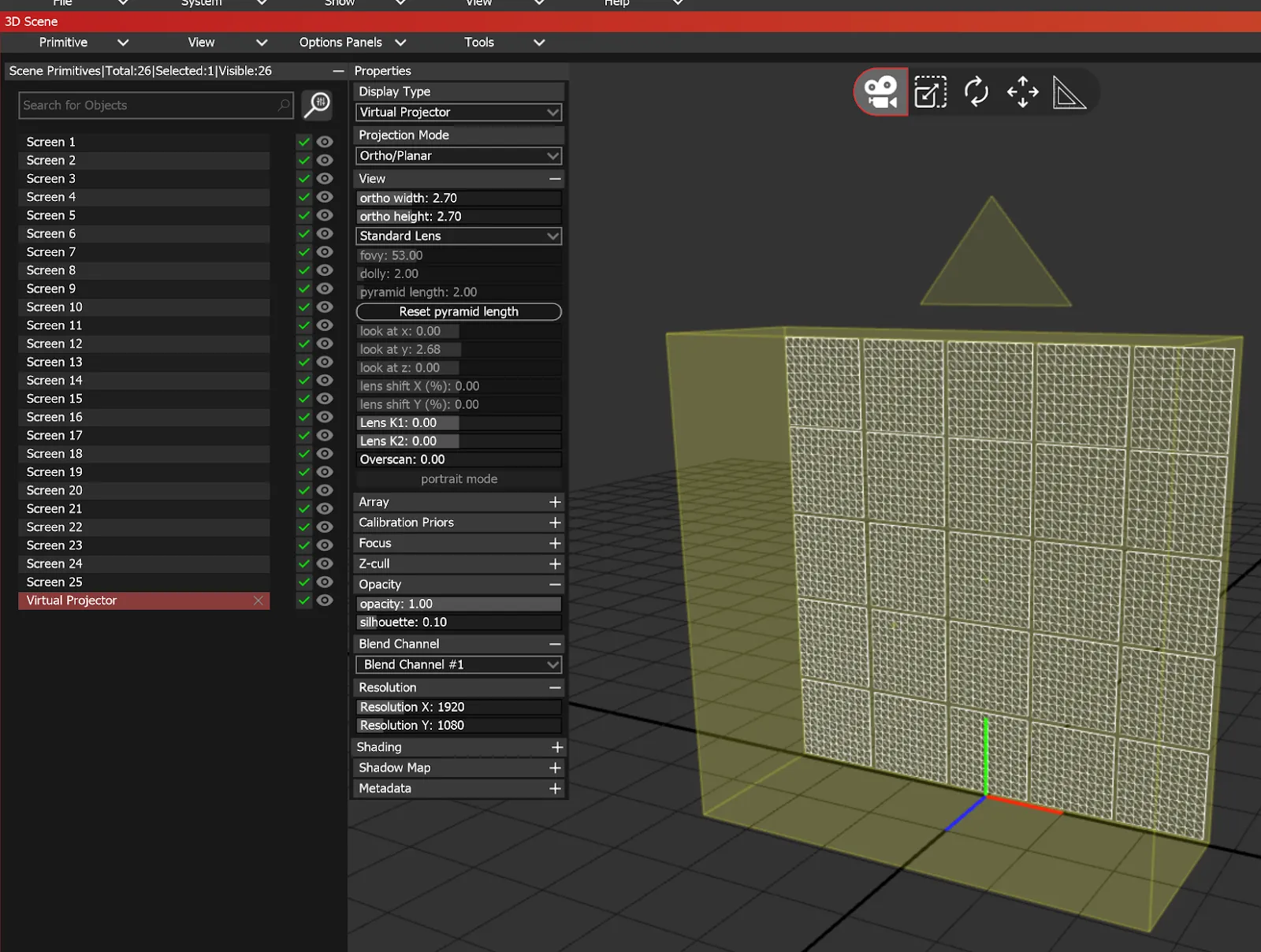
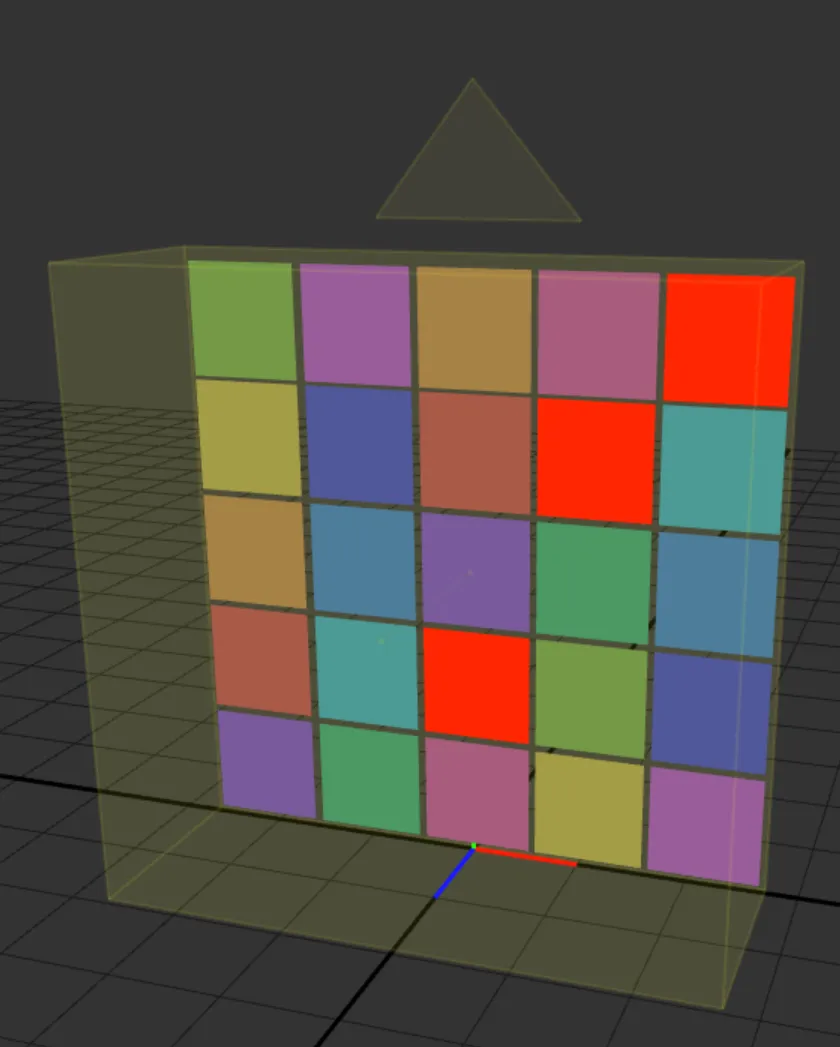
This setup has 25 Screens and an Orthographic Virtual Projector:
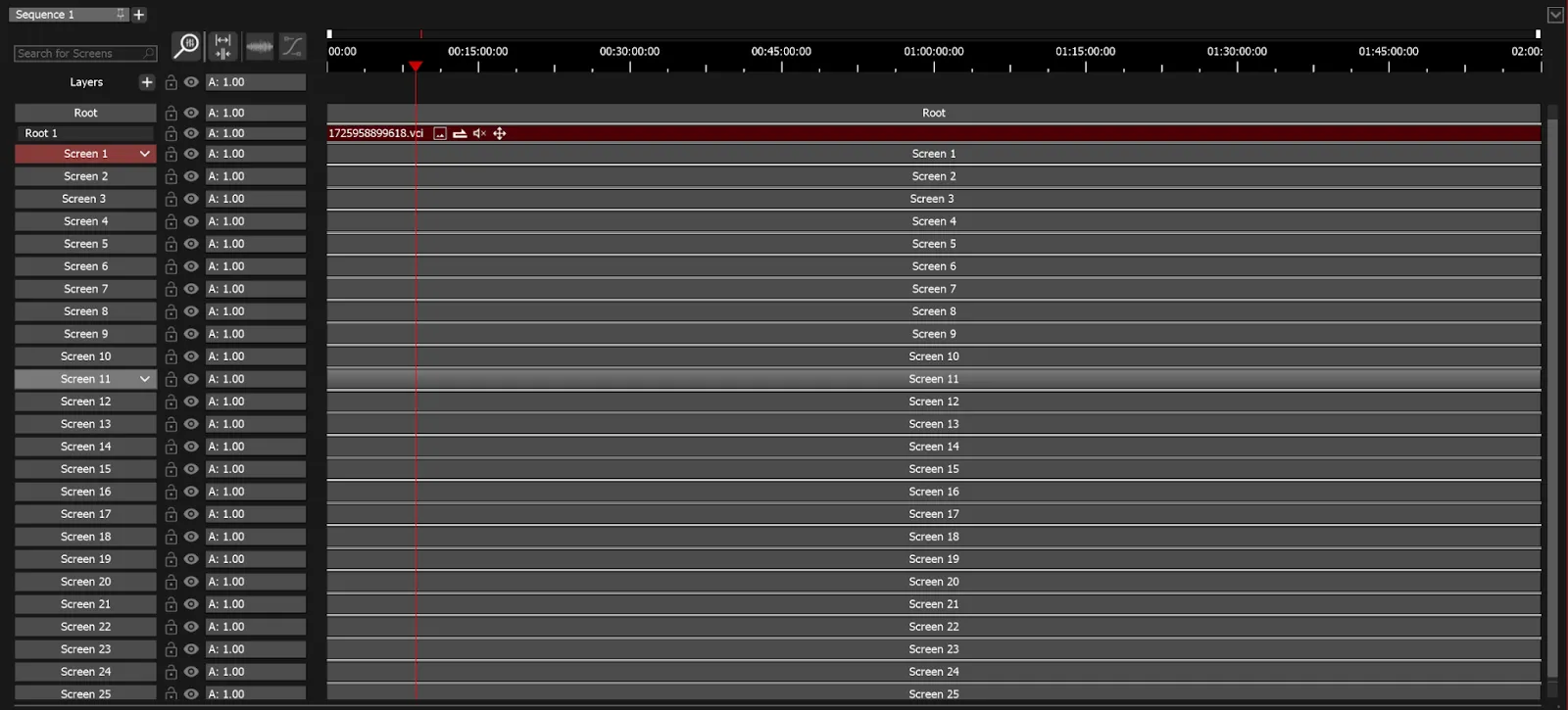
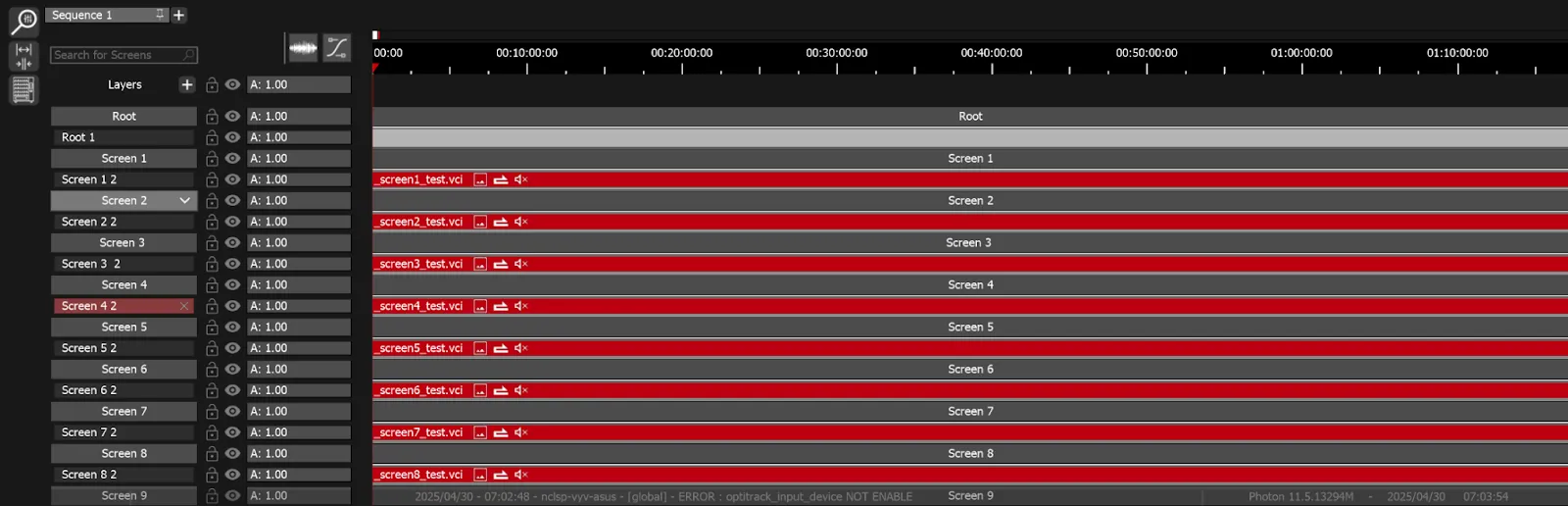
Your Timeline should look like this:
Click #1
Open the Clip Distributor by clicking on the Jihanki (Japanese Vending Machines) button in the new tools column of the Timeline:
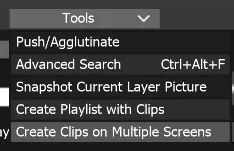
Or Select
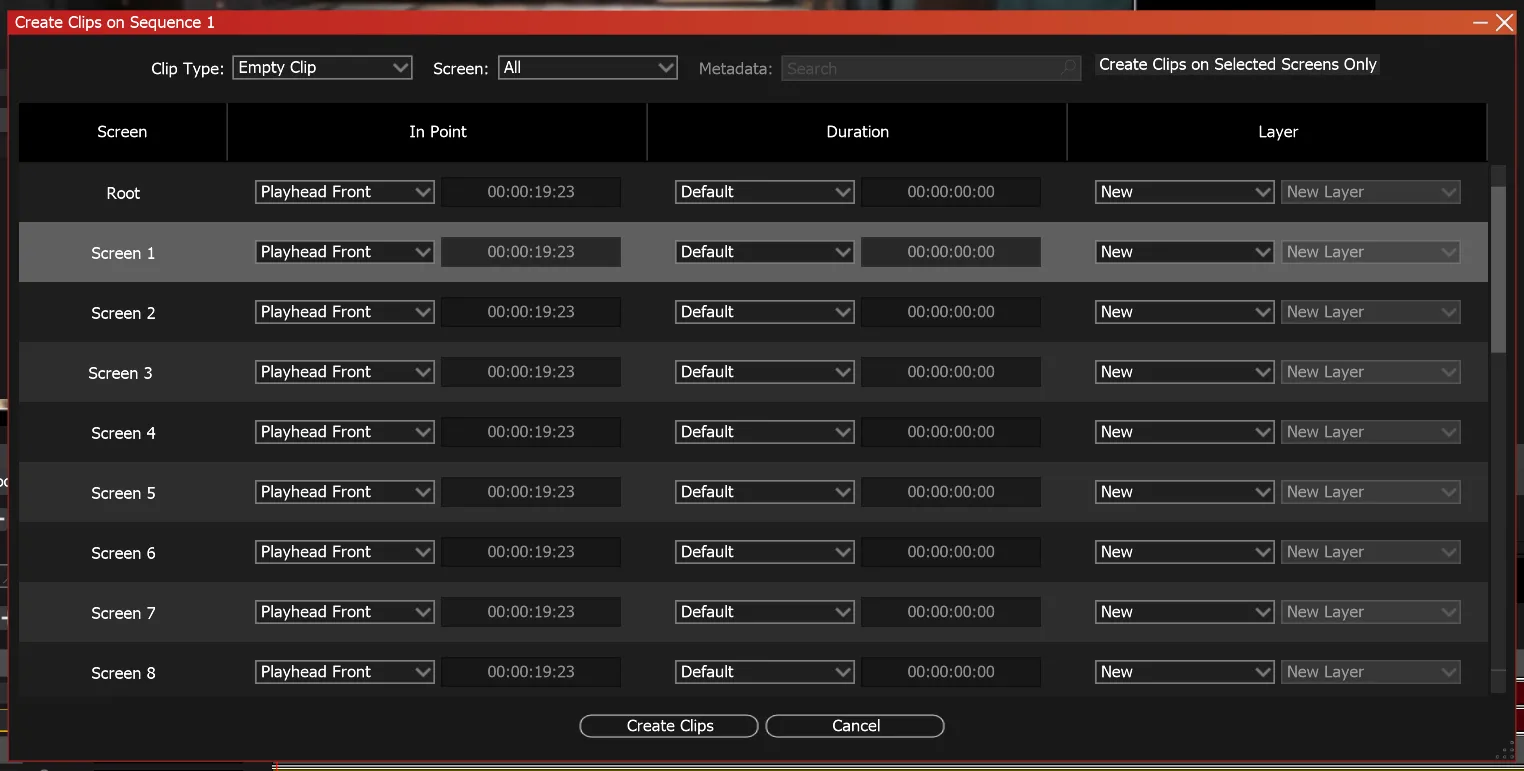
This will open this new distributor module.
Clicks #2 & #3
Select Virtual Projector in the Clip Type drop-down menu.
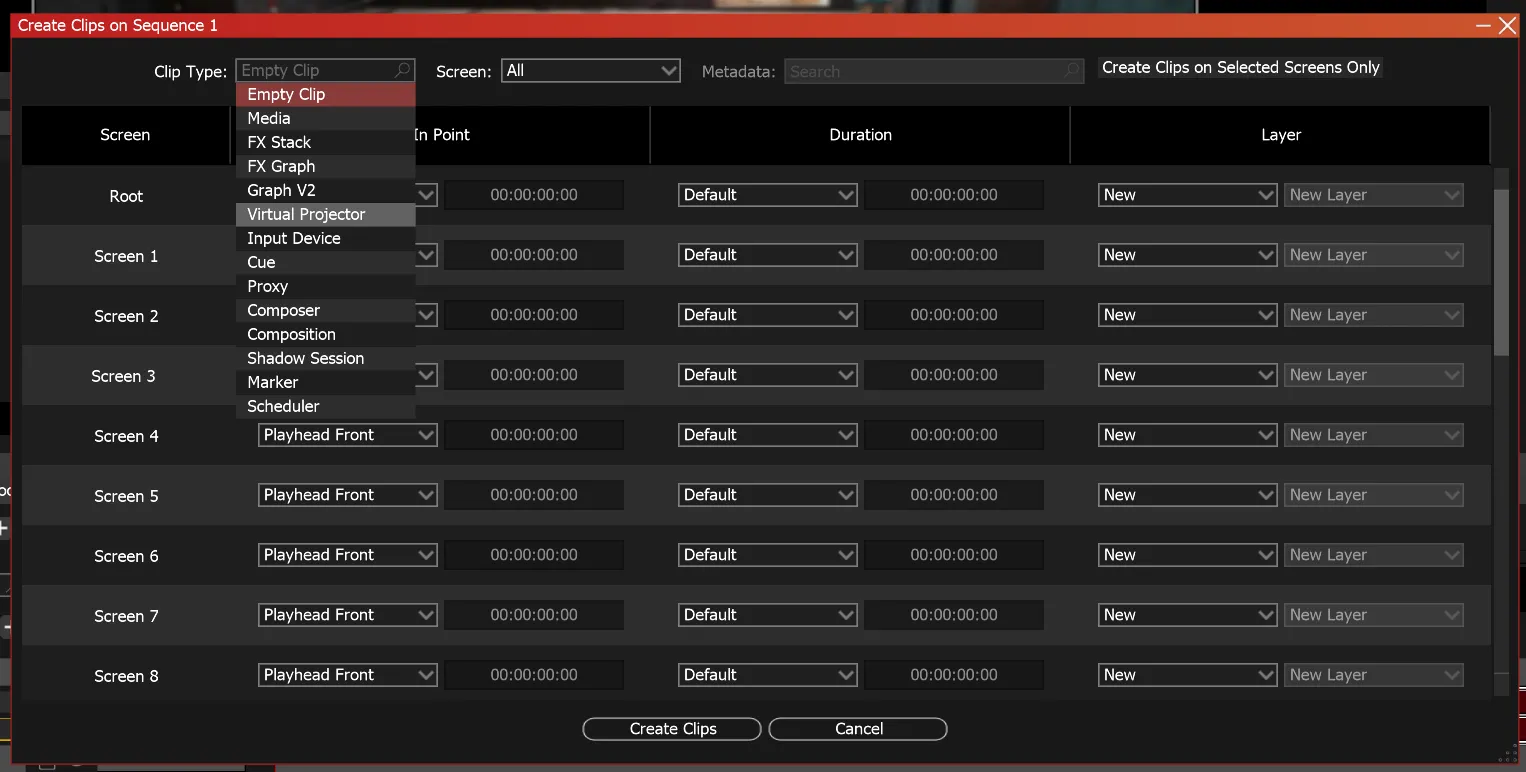
Hit Ctrl + A to select all screens.
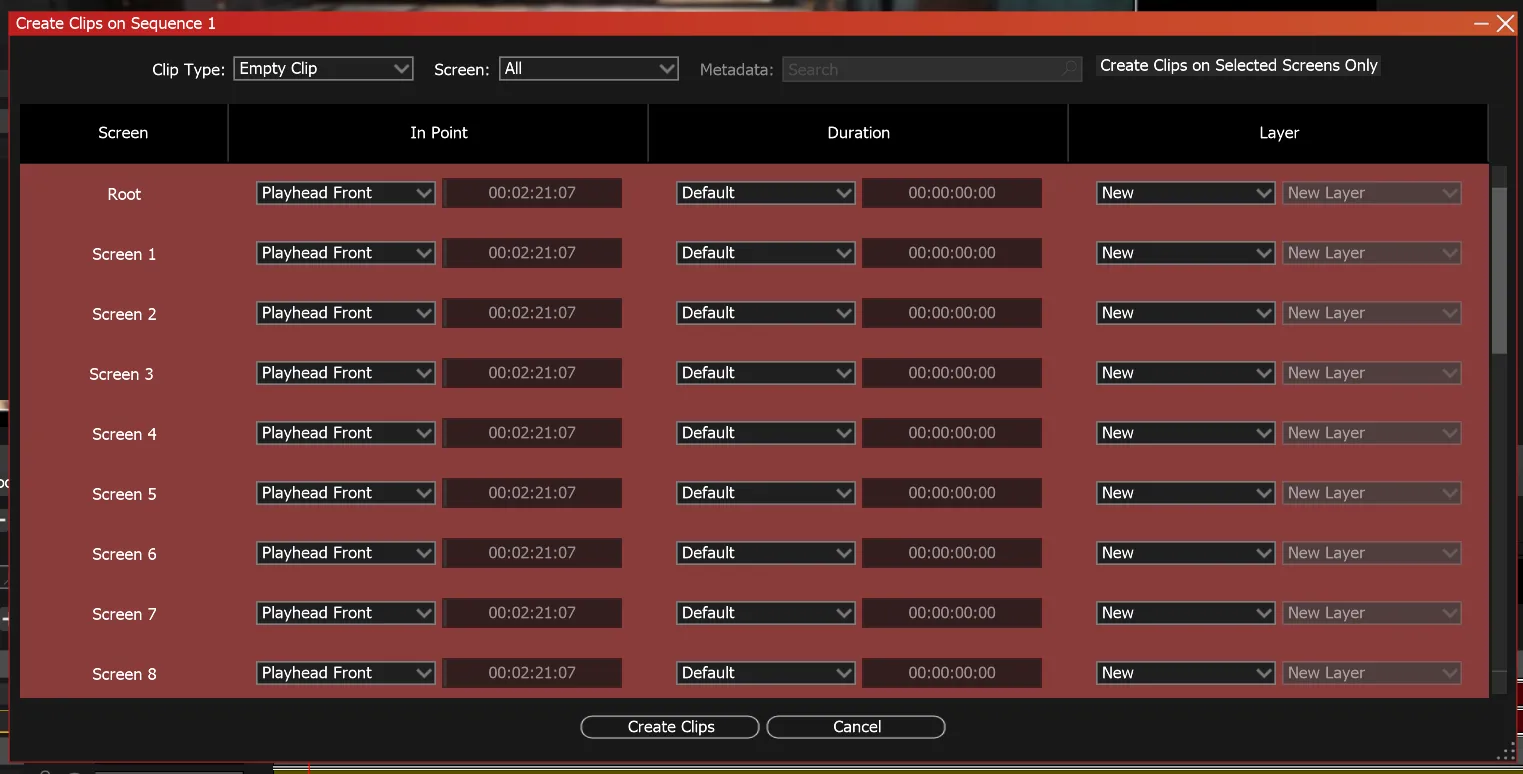

Enable Create Clips on Selected Screens Only (toggle button on the top right).
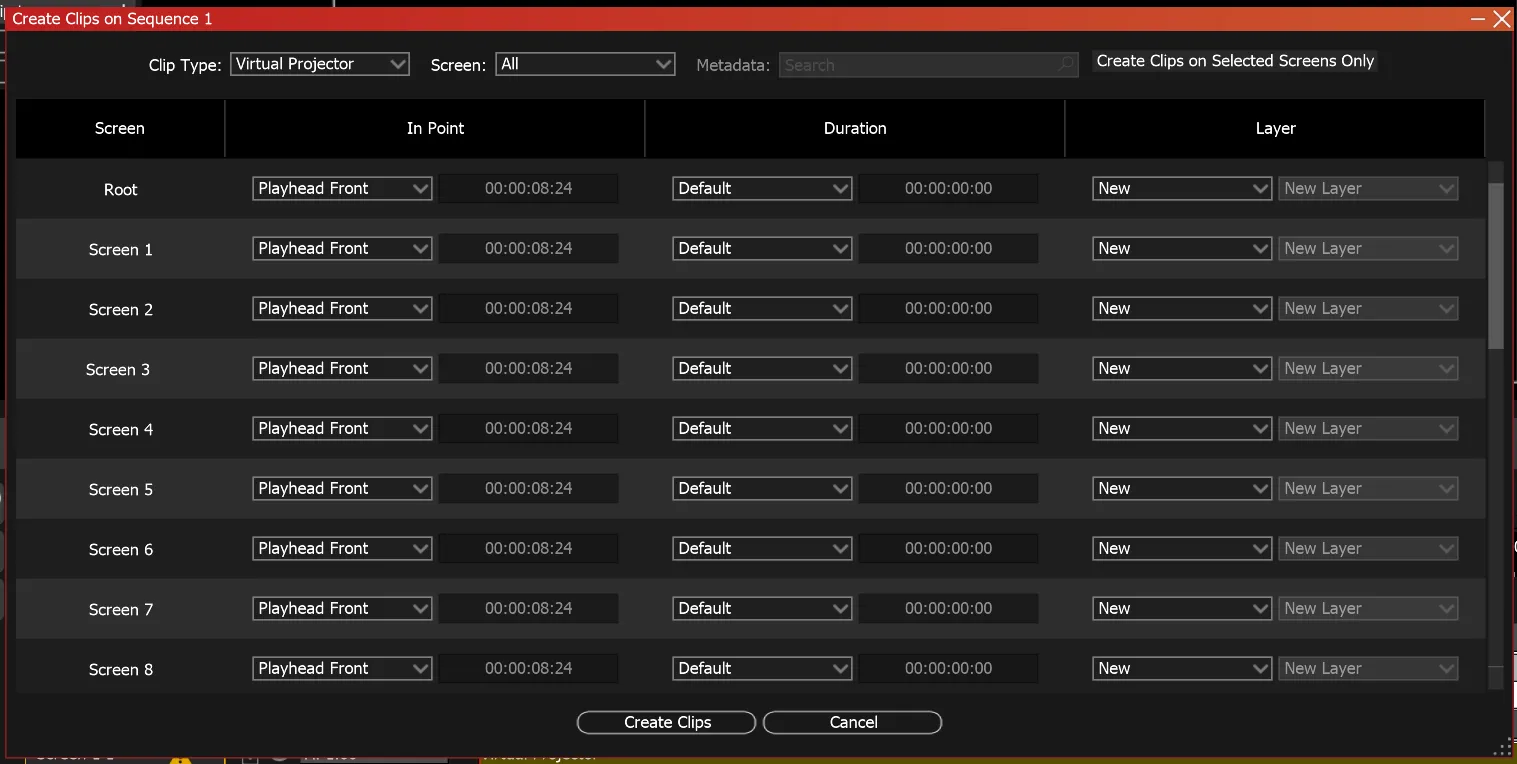
Click #4
Ctrl + Left click the root to exclude it.
Click #5
Hit the Create Clips button.
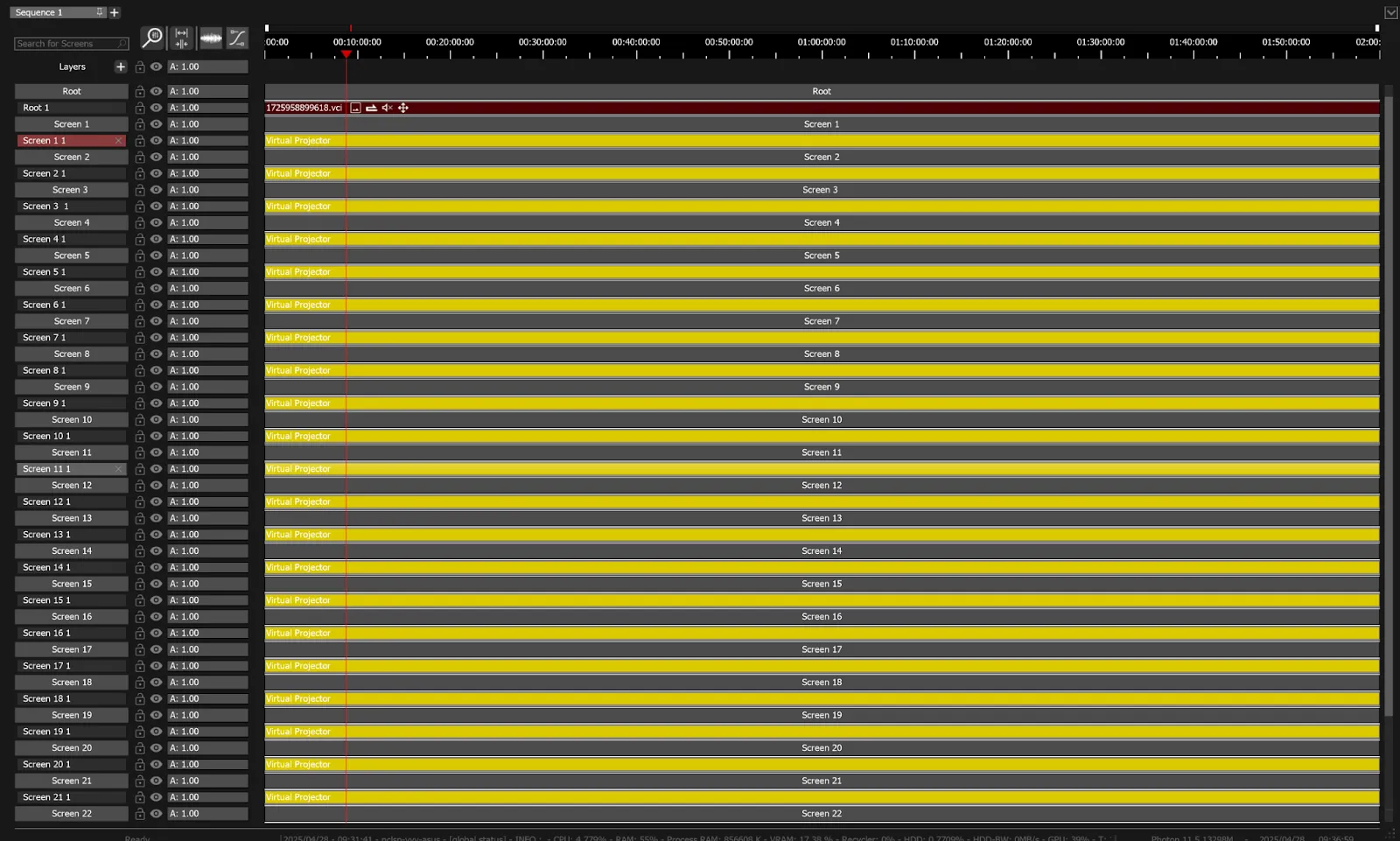
And voilà: 25 Nice Virtual Projector clips, one for each screen.
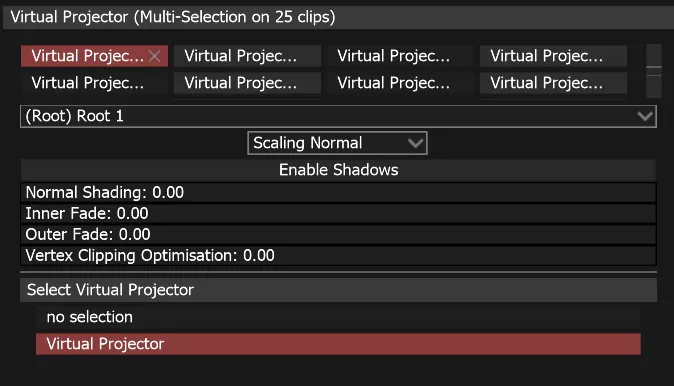
With the new Multi-Selection you can now set all 25 clips at once for the root source image and the Virtual Projector placed in the scene. (Clicks #6 & #7)
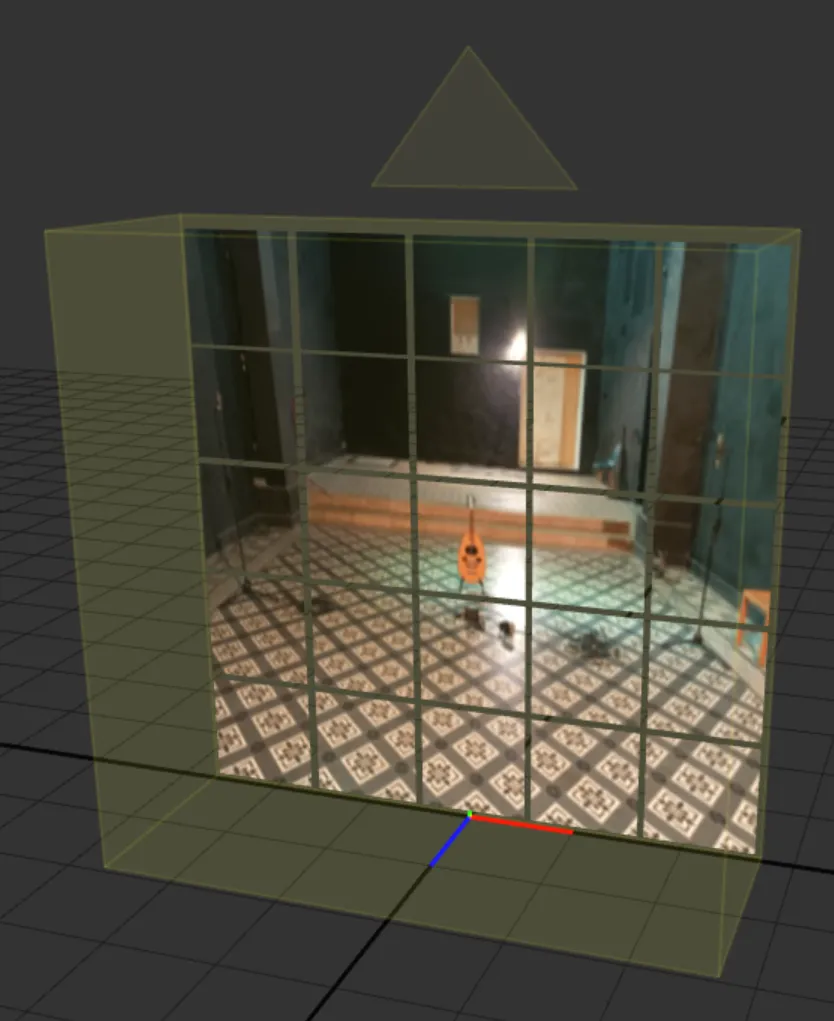
Here is the final result.
You can obviously use the tool to create any clip type :)
BONUS CLICKS
Screen Selection

The Screen drop-down menu allows you to choose which screens will be affected by the distribution tool.
ALL
Clips will be added to all screens
From Selection
The distribution will begin from the selected screen in the Timeline and continue downward.
You can segment screens using the Metadata search input.

It works the same way as the Timeline Search for Screens.
The Create Clips on Selected Screens Only toggle applies clip distribution only to the screens selected in the tool.

Per Screen Options
Each screen has a set of options to control the creation of clips.
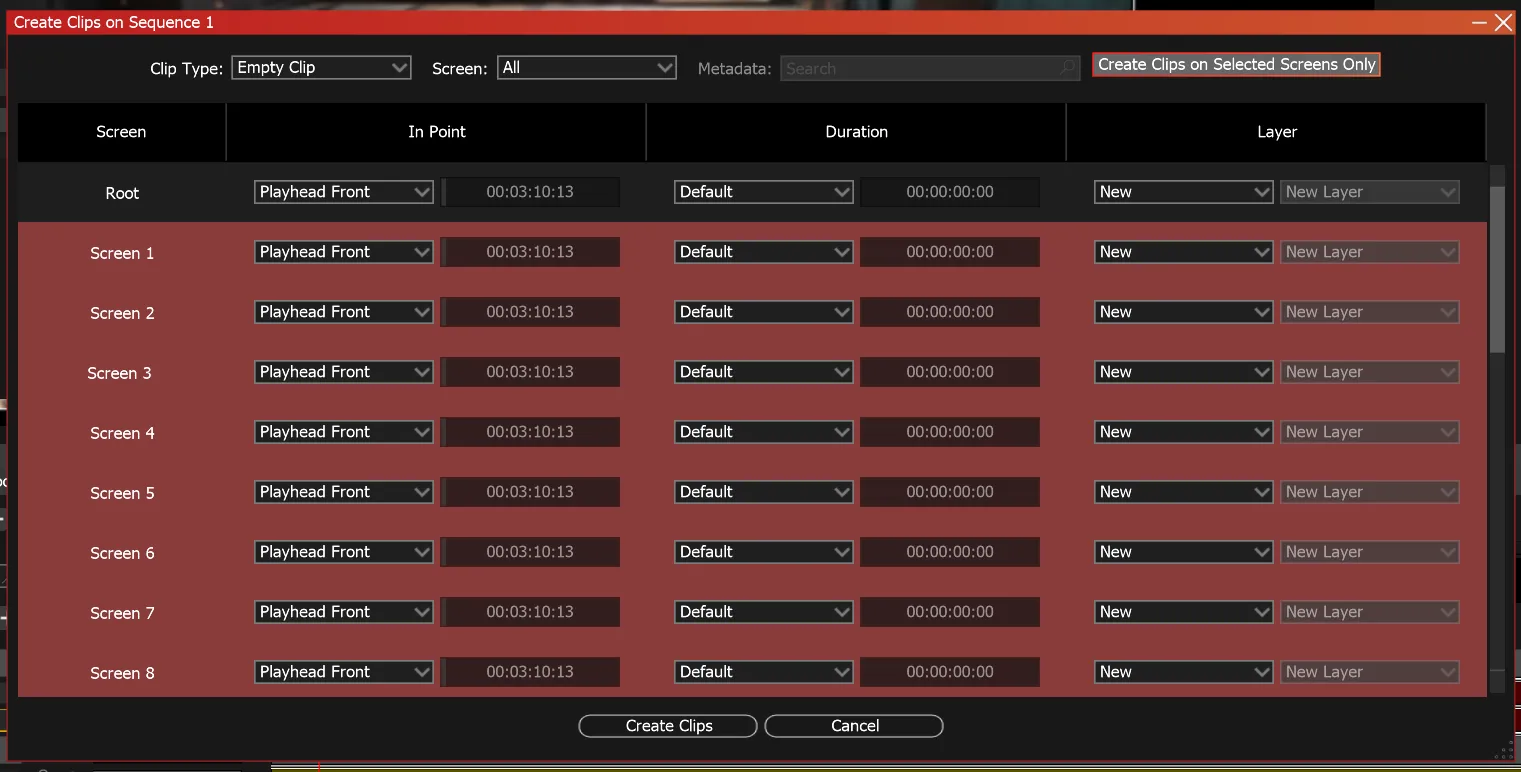
In point
Sets the In Point of the clip:
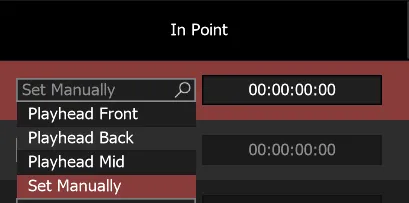
Playhead Front:
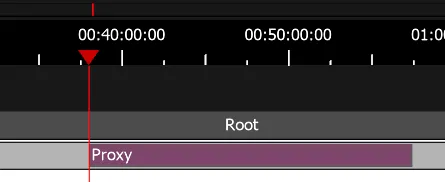
Playhead Back:
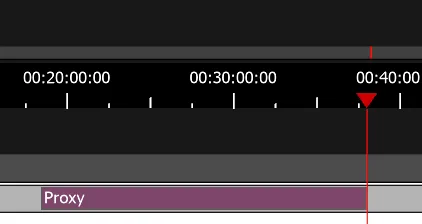
Playhead Mid:
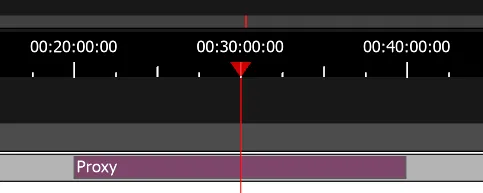
Set Manually gives you access to a time slider to set a custom time.

Duration
Default will be using the value in
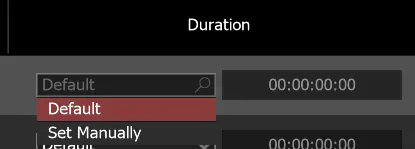
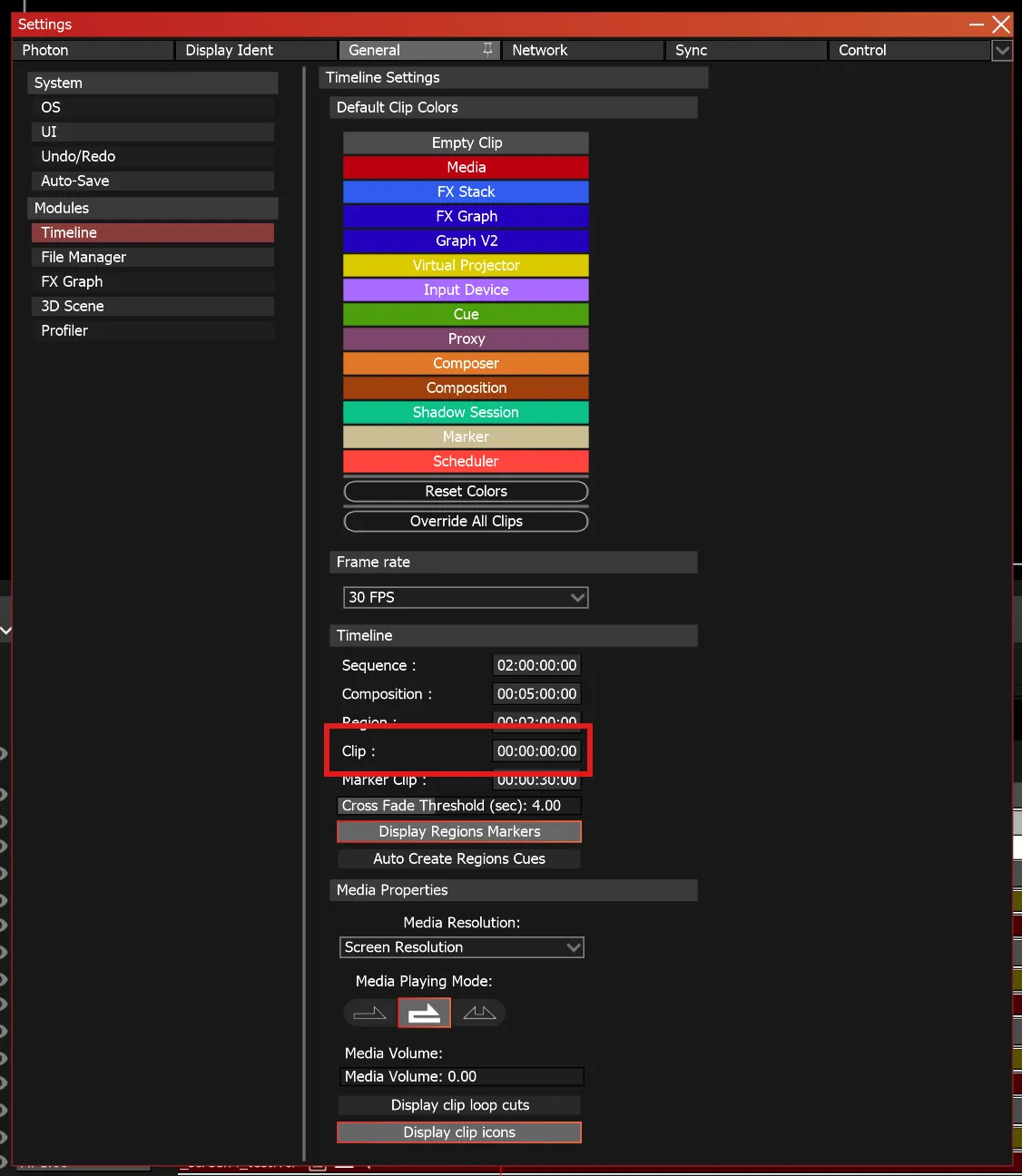
Set Manually gives you access to a time slider to set a custom time.
Layer
You can specify the layer on which the clip will be created for each screen.
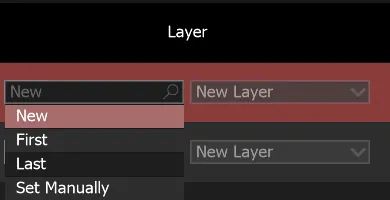
New
Will create a new layer at the bottom of the layer stack in each screen.
First
Will create the clip on the first (top) layer of each screen.
Last
Will create the clip on the last (bottom) layer of each screen.
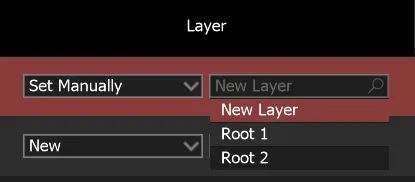
Set Manually lets you choose on which layer you want to create the clip.
All these options can be configured simultaneously on all screens using multi-selection.
You can now easily distribute media across multiple screens.
A new input box named Media Name Pattern allows you to establish a naming pattern for each screen, which can be mirrored in the media files naming system used by the content house.
Set a naming convention for each screen.
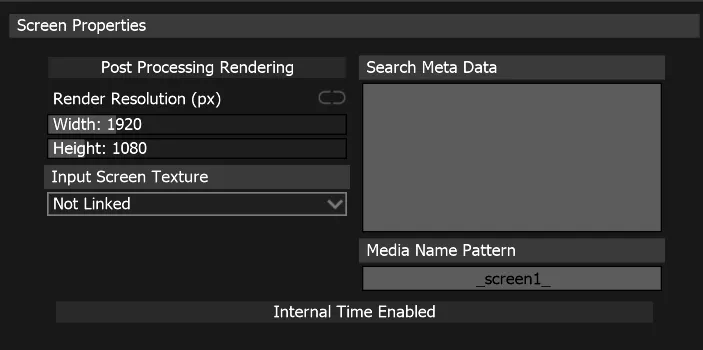
Replicate that naming convention in your Media Files.

Select the Media Files you want to distribute on screens in the File Manager Alt + F and Right Click Select Auto Create Media Clips on Screens.
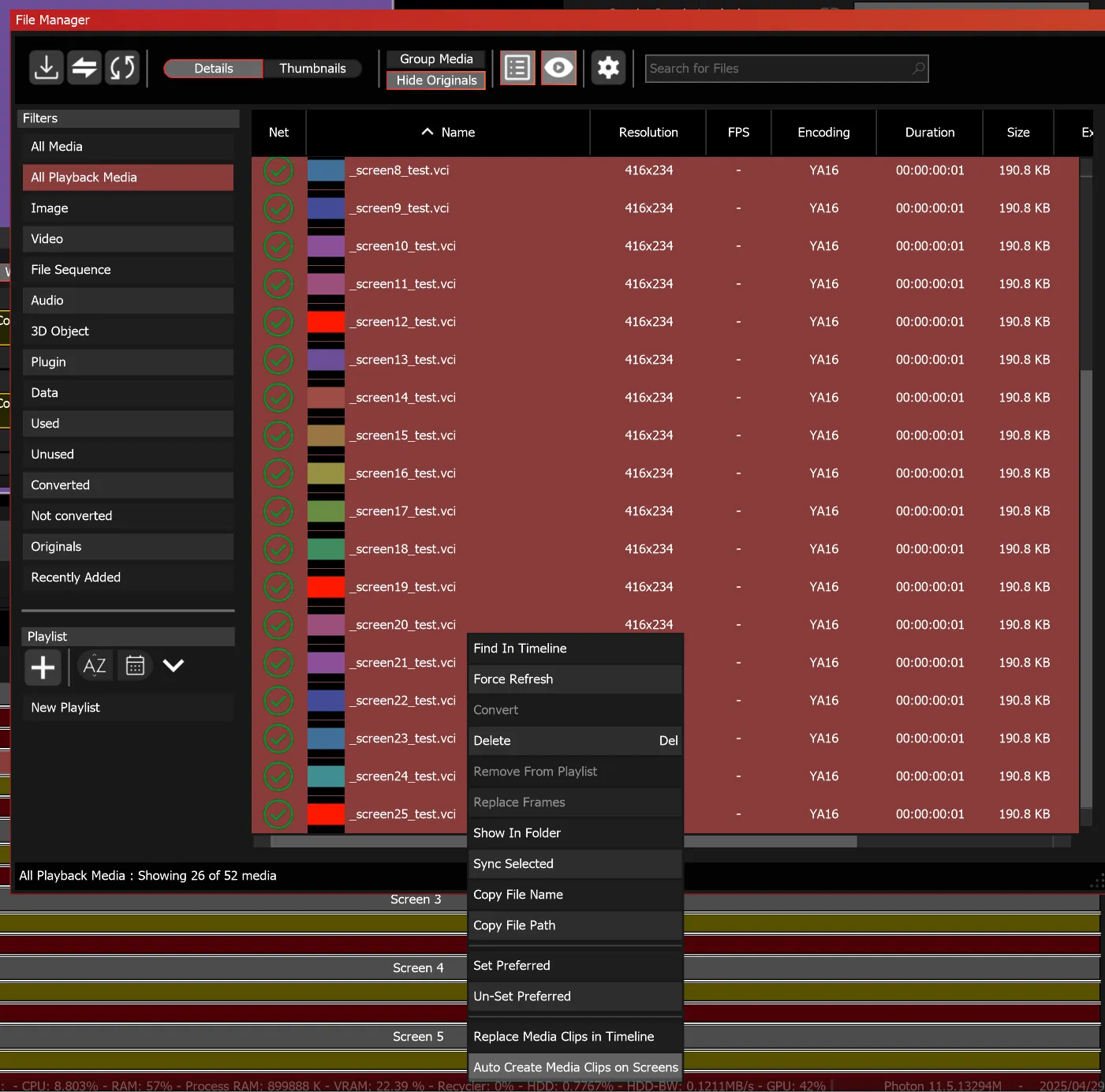
It will automatically launch the clip distribution tool in media mode and link the media to their respective screens.
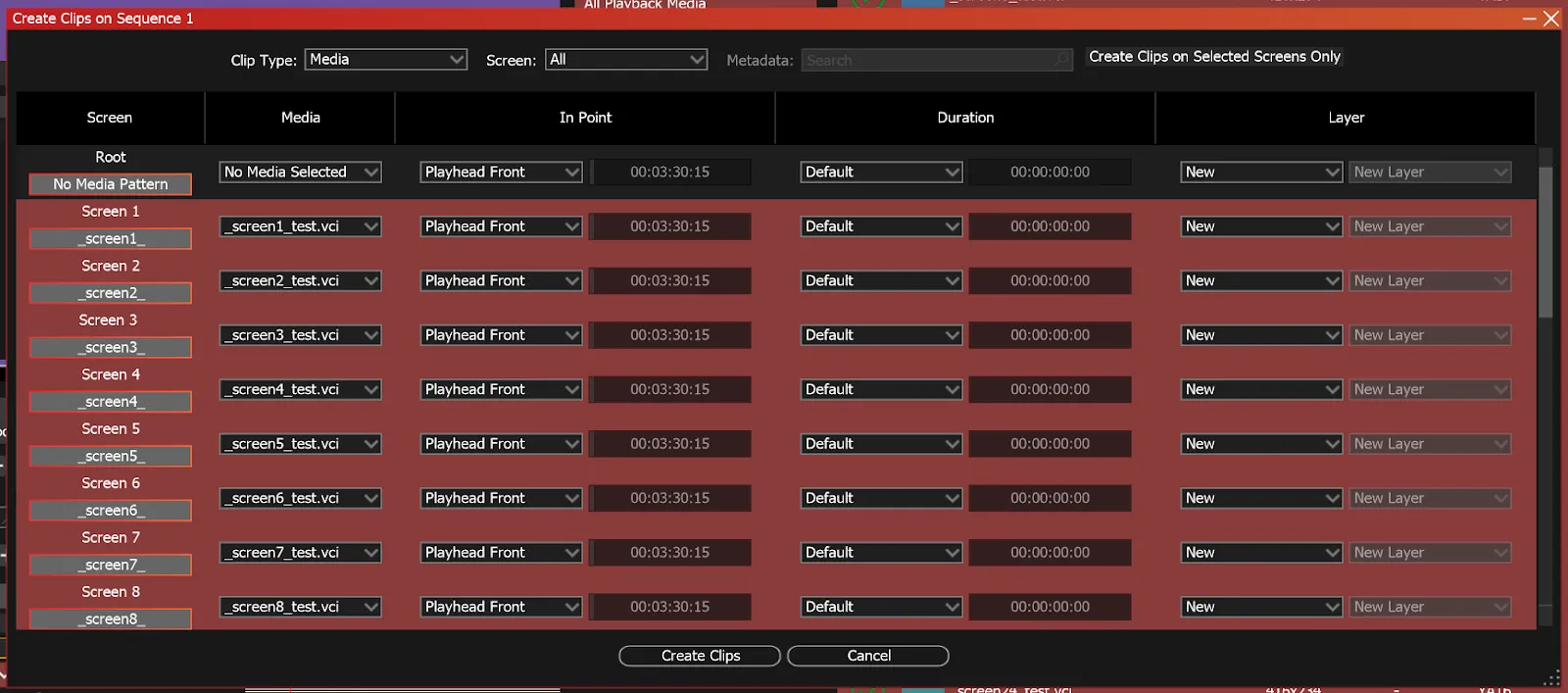
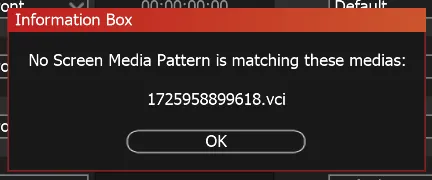
If the media name does not match the screen name, a pop-up warning will be displayed:
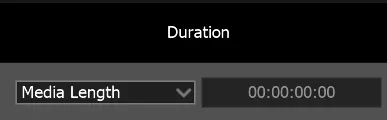
If you are adding video using the tool, set the duration sliders to match the media length.
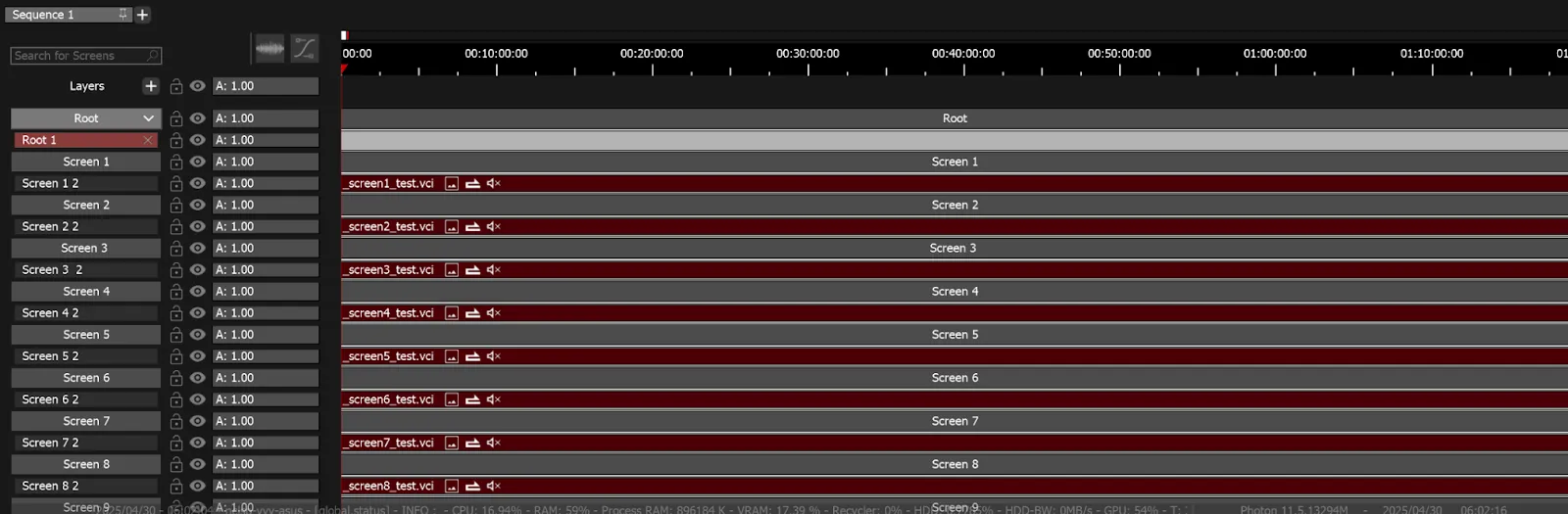
And there you have it: 25 media pieces distributed across their respective screens.
You can now easily replace media across multiple screens.
Warning:Note that this follows the same logic as the automatic creation: screens and files must adhere to the chosen name pattern.
In the Timeline, select the media clips you wish to replace.
In the File Manager, select the Media Files you want to replace on screens and Right Click Select Replace Media Clips in Timeline.
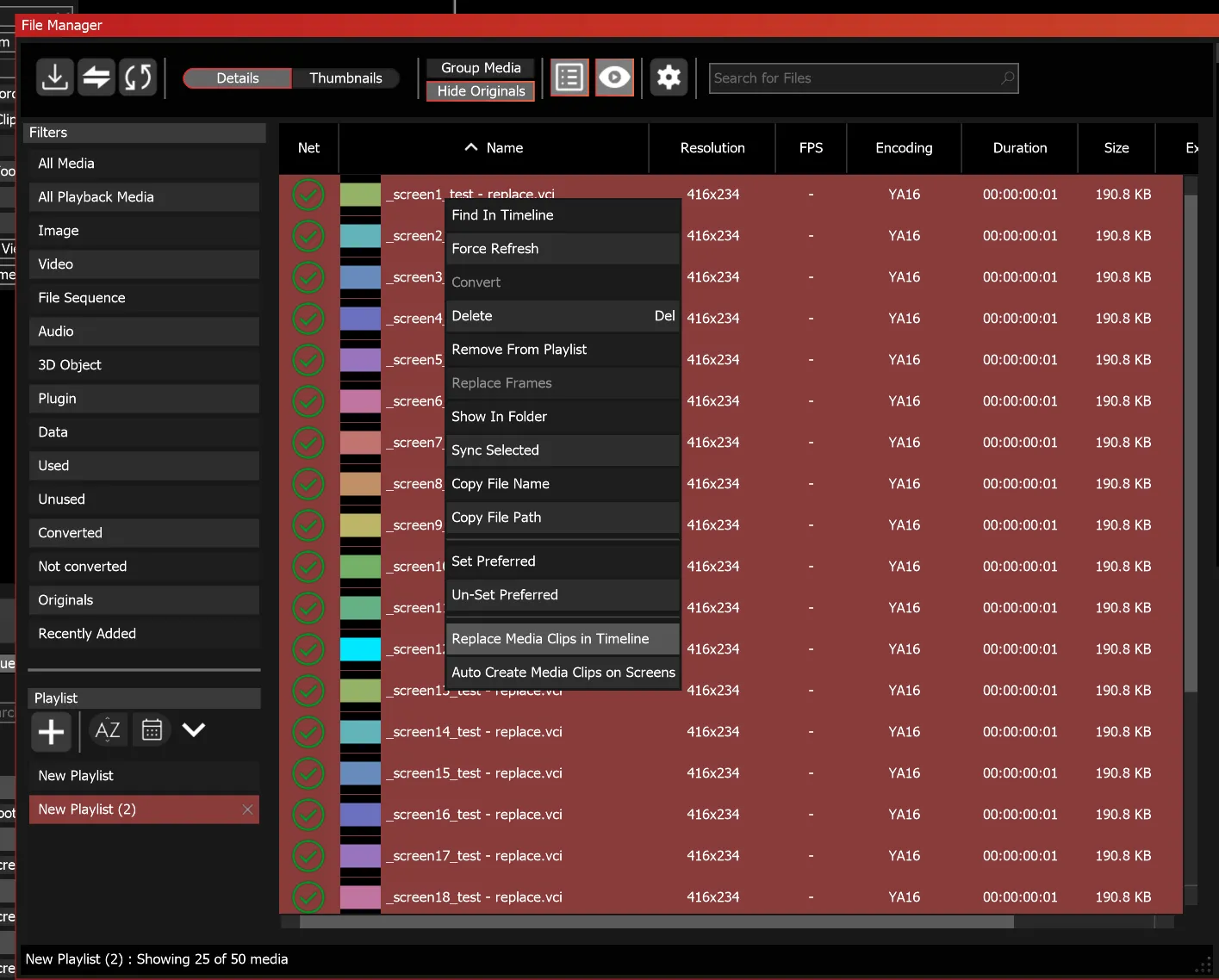
Warning:It will not launch the clip distribution tool.
25 media pieces replaced across their respective screens: