PHOTON TACHYON
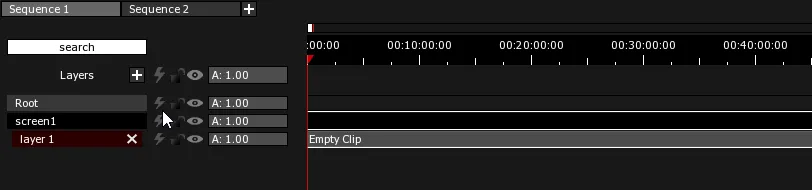
Empty Clip Ctrl + N
Empty Clips act as empty shells that don’t contain anything. They are mainly used to add operation notes in the Timeline. The default color for representing Empty Clips is grey.
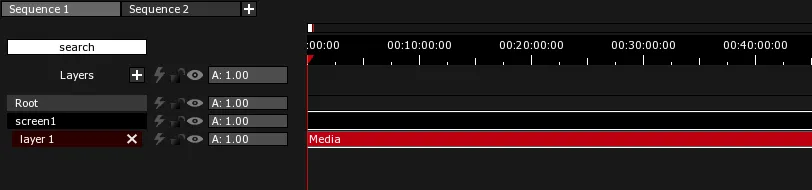
Media Clips contain different kinds of media: single frame images, videos and sound files. The default color for representing Media Clips is red.
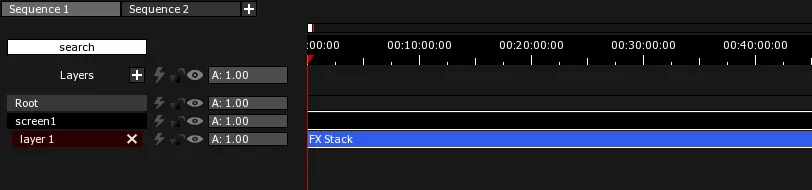
FX Stack Clip Ctrl + E
FX Stack Clips act as adjustment Layers, transforming one or two sources with real-time effects (blur, glow, etc.). There are more than one hundred different kinds of effects. The default color for representing FX Stack Clips is light blue.
FX Graph Clip Ctrl + W
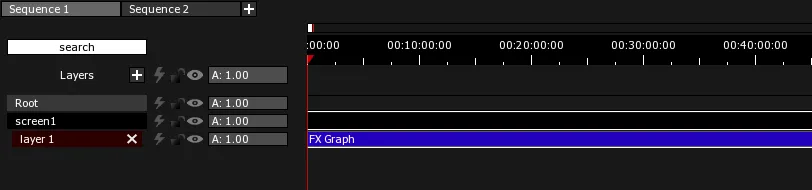
In PHOTON, FX Graph Clips refer to a specific Graph created in the FX Graph module. The FX Graph module is a graphical programming interface that is used to create effects, manage particles, program logic functions and integrate incoming data from the 3D Scene. The default color for representing FX Graph Clips is deep blue.
Virtual Projector Clip Ctrl + R
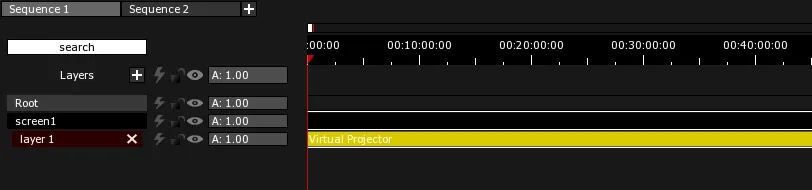
Virtual Projector Clips re-project content from a point of view defined by the position and orientation of its corresponding Virtual Projector in the 3D Scene. They virtually project images onto Screens, modifying their texture in the process. Virtual Projector Clips are often used in interactive effects used in combination with camera mapping. The default color for representing Virtual Projector Clips is yellow.
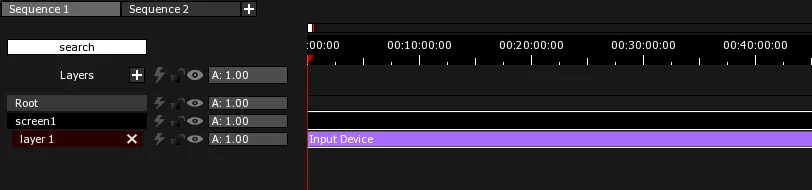
Input Device Clips refer to input devices such as video acquisition cards, cameras and NDI streams accessed through the I/O module. An Input Device Clip will display its texture (the incoming video feed) onto the Screens it is placed in. The default color for representing Input Device Clips is purple. In TACHYON, only NDI streams are supported.
Cue Clip Ctrl + U
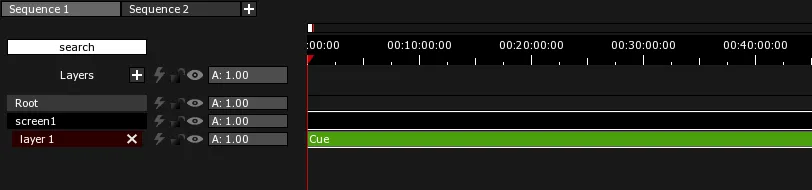
Cue Clips refer to Cues which are macro commands created with the help of the Cue Editor module. They are triggered by PHOTON when the Playhead intersects with the boundaries of the Clip. The default color for representing Cue Clips is green.
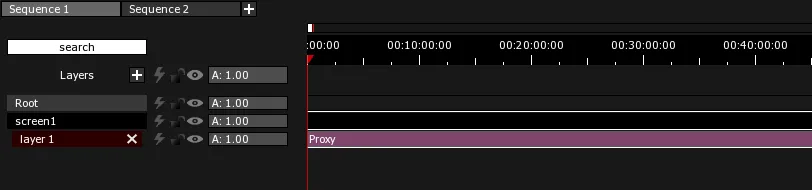
Proxy Clip Ctrl + P
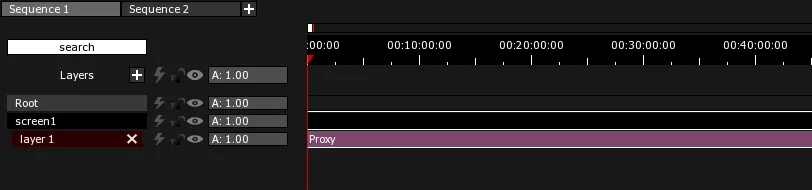
Proxy Clips allow you to distribute a reference texture originating from another Clip to other Screens. The source Clip (media, live input, etc.) is usually placed in the Root. Using Proxy Clips reduces the load on the GPU and the disks because the texture is only read once even if its content is displayed on multiple Screens. The default color for representing Proxy Clips is burgundy.
Composer Clip Ctrl + G
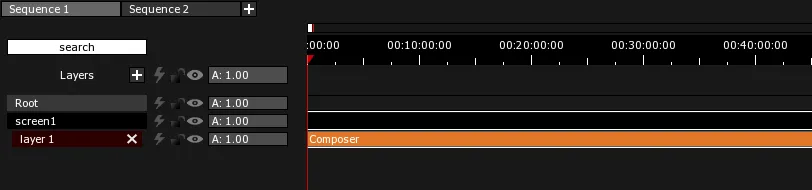
Composer Clips allow you to “bake” a visual composition (a single image composed of many Layers of content) that can be referenced by Clips placed on a Layer below in the Timeline. This is very useful because most of the parameters set in the Shared Clip Properties are not transferred when sourcing Clips in PHOTON. The default color for representing Composer Clips is orange.
Composition Clip Ctrl + H
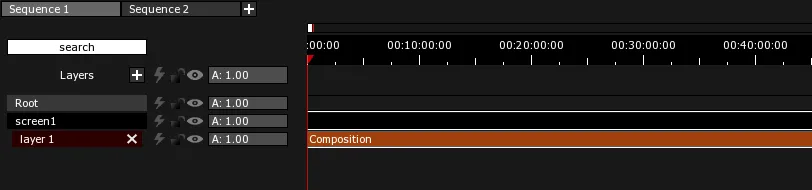
This feature is still in development and should not be used in Shows. Composition Clips allow you to encapsulate a section of the Timeline into a Sub-Timeline that can be visualized by opening the tray at the bottom of the Timeline window. The default color for representing Composition Clips is brown.
Shadow Session Clip Ctrl + O
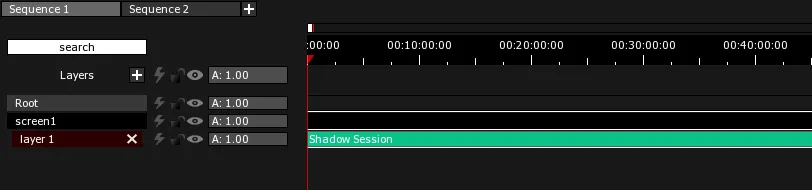
Shadow Session Clips allow you to play back PSN (PosiStageNet) data recordings. The default color for representing Shadow Session Clips is aqua.
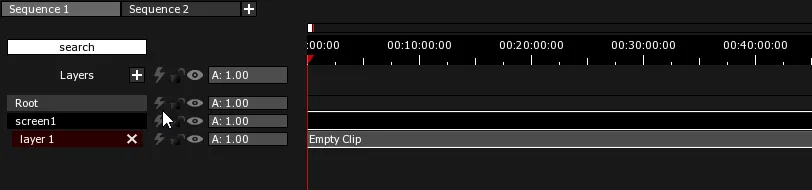
Empty Clip Ctrl + N
Empty Clips act as empty shells that don’t contain anything. They are mainly used to add operation notes in the Timeline. The default color for representing Empty Clips is grey.
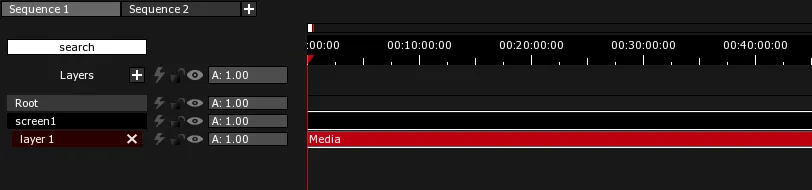
Media Clips contain different kinds of media: single frame images, videos and sound files. The default color for representing Media Clips is red.
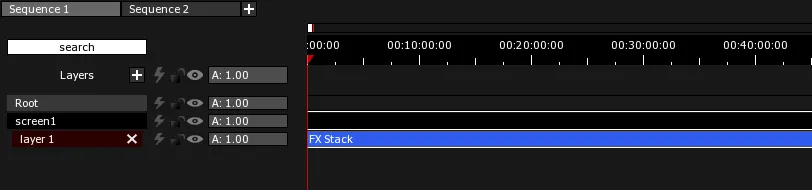
FX Stack Clip Ctrl + E
FX Stack Clips act as adjustment Layers, transforming one or two sources with basic real-time effects (e.g. Color Correction, rotation, etc.). The default color for representing FX Stack Clips is light blue.
For expanded creative control, hundreds of additional effects are available through Photon
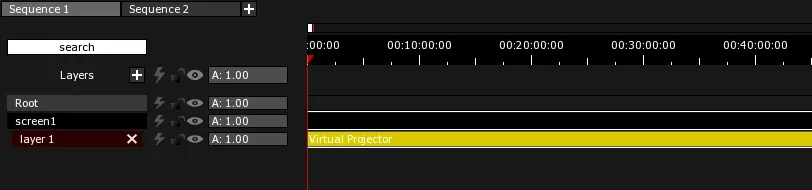
Virtual Projector Clip Ctrl + R
Virtual Projector Clips re-project content from a point of view defined by the position and orientation of its corresponding Virtual Projector in the 3D Scene. They virtually project images onto Screens, modifying their texture in the process. Virtual Projector Clips are often used in interactive effects used in combination with camera mapping. The default color for representing Virtual Projector Clips is yellow.
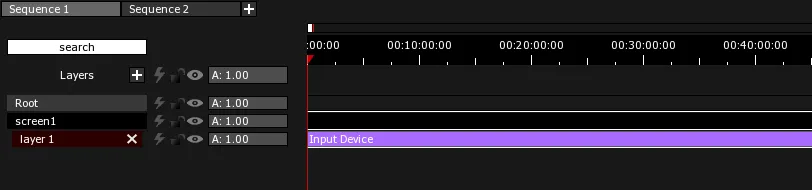
Input Device Clips refer to input devices such as video acquisition cards, cameras and NDI streams accessed through the I/O module. An Input Device Clip will display its texture (the incoming video feed) onto the Screens they are placed in. The default color for representing Input Device Clips is purple. In TACHYON, only NDI streams are supported.
Cue Clip Ctrl + U
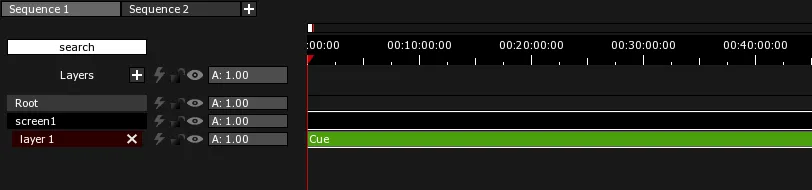
Cue Clips refer to Cues which are macro commands created with the help of the Cue Editor module. They are triggered by TACHYON or PHOTON when the Playhead intersects with the boundaries of the Clip. The default color for representing Cue Clips is green.
Proxy Clip Ctrl + P
Proxy Clips allow you to distribute a reference texture originating from another Clip to other Screens. The source Clip (media, live input, etc.) is usually placed in the Root. Using Proxy Clips reduces the load on the GPU and the disks because the texture is only read once even if its content is displayed on multiple Screens. The default color for representing Proxy Clips is burgundy.